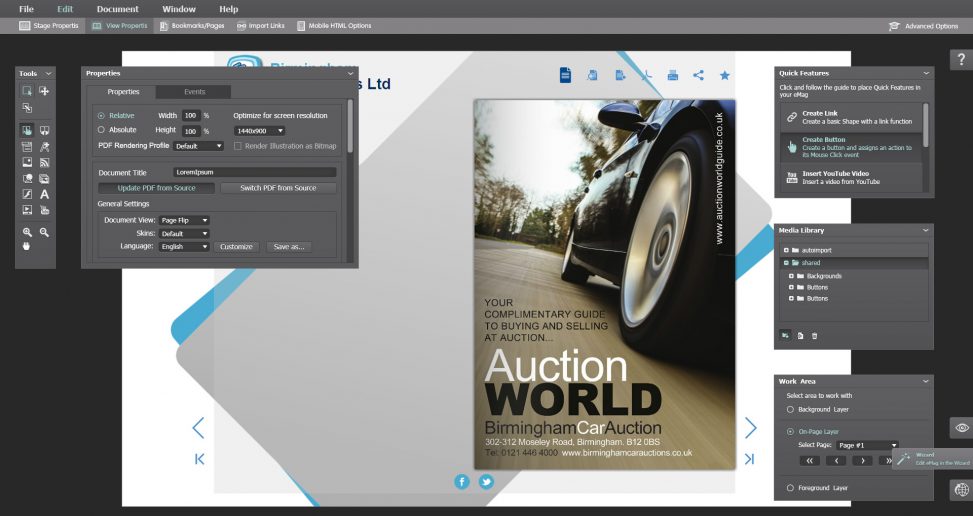
eMagStudio is an advanced design and publishing suite for electronic flip magazines (emags) on Windows and Mac. Think of it a bit like InDesign, but focusing on magazine interactivity. On the base level it enables you to input a PDF, which is then automatically analyzed for text, links and image content, indexed and exported as an animated flip-magazine. But while many competing online services do that just fine, what makes eMagStudio stand apart is with its design tools and host of advanced features.
The suite offers responsive designs with scalable navigation, embedded sound, video, HTML and Flash, and saving it all into a re-usable template that can be used for batch processing. It even has a simple script builder allowing the user to easily set up event listeners and actions to respond to events. It also supports most common social sharing APIs and works in tandem with eMagCreator online processing framework for offloading and storage. Published eMags can be read in desktop- or mobile browsers supporting either Flash or HTML5 or as a standalone packaged executable. It also has provisions for building emag mobile apps.
The application is entirely developed in Adobe Flex and was recently ported to Adobe Air.
As design lead, my work on eMagStudio entailed providing ongoing design and specification of the application’s user interface and features and final assets. I also produced skinning and whitelabel documentation for resellers, as well as occasional day-to-day co-management of the development team in Ukraine.
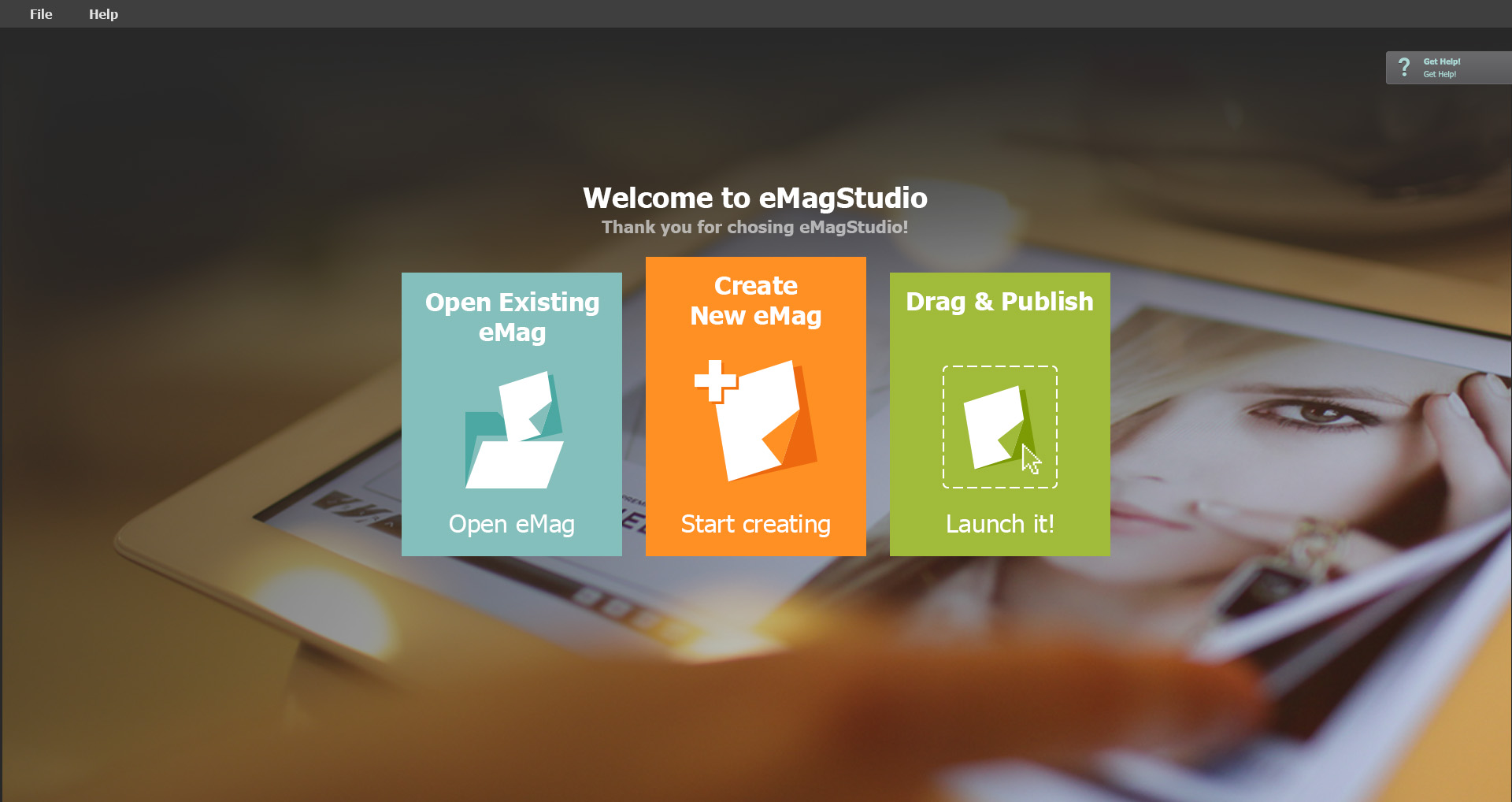 Above: The opening screen shows three big icons, providing quick access to the application’s three most typical tasks. The right-most icon is a quick option that allows users with already prepared templates to simply Publish a new PDF as an emag with a couple of clicks right from the opening screen.
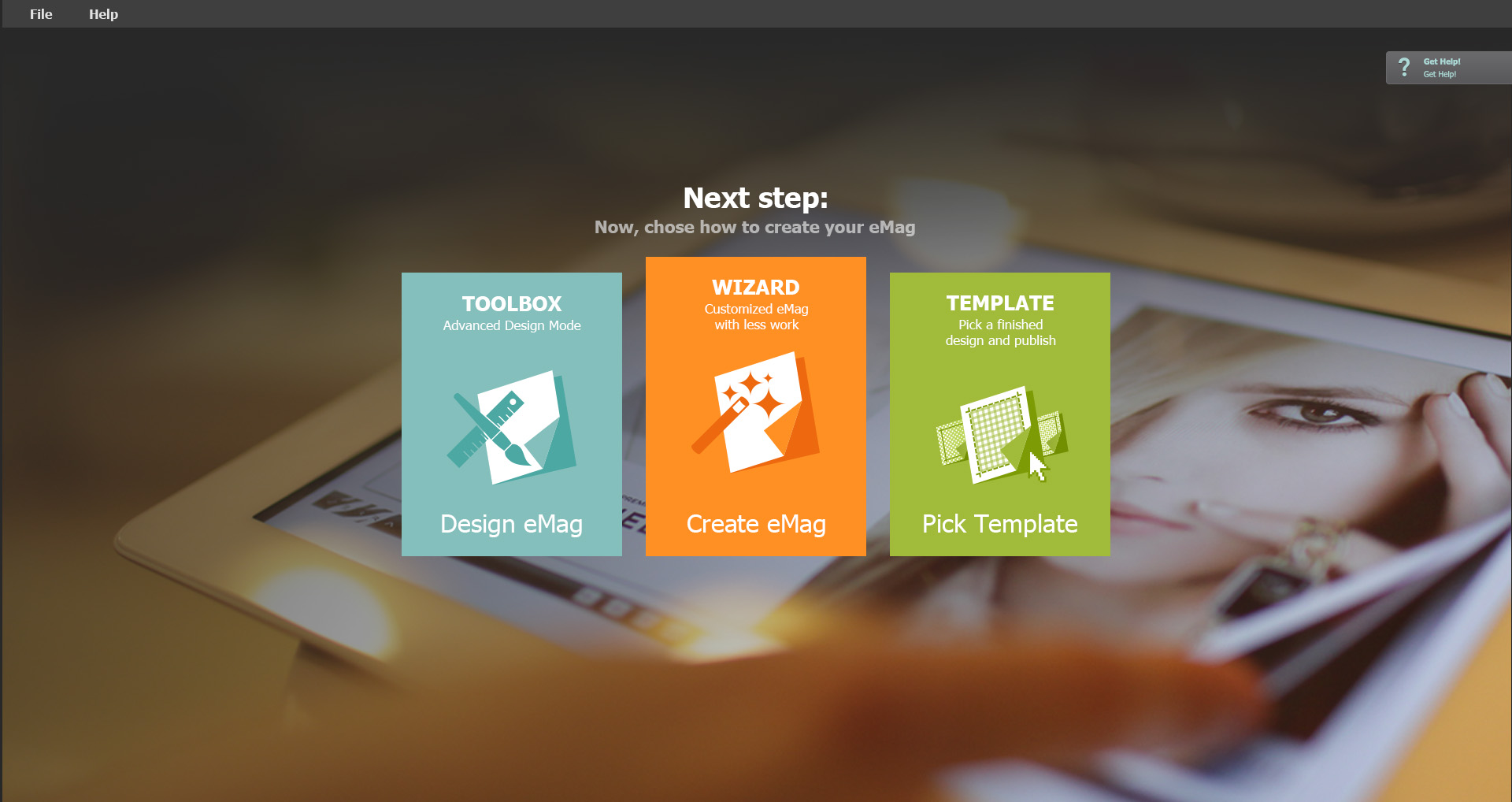 Above: Selecting “Create New eMag”, the user is presented with three ways of doing so, each providing a different workflow. Clicking either icon will set up the work environment optimally for the selected flow. The Toolbox mode is for experienced users who wants control of every nut and bolt. The Wizard is an on-rails affair that enables users to create eMags with no prior experience, while still allowing them to step off the roller coaster at any point and enter the Toolbox mode to take full control. The template mode is for users in a hurry who just wants to get something published using an existing template with very few changes.
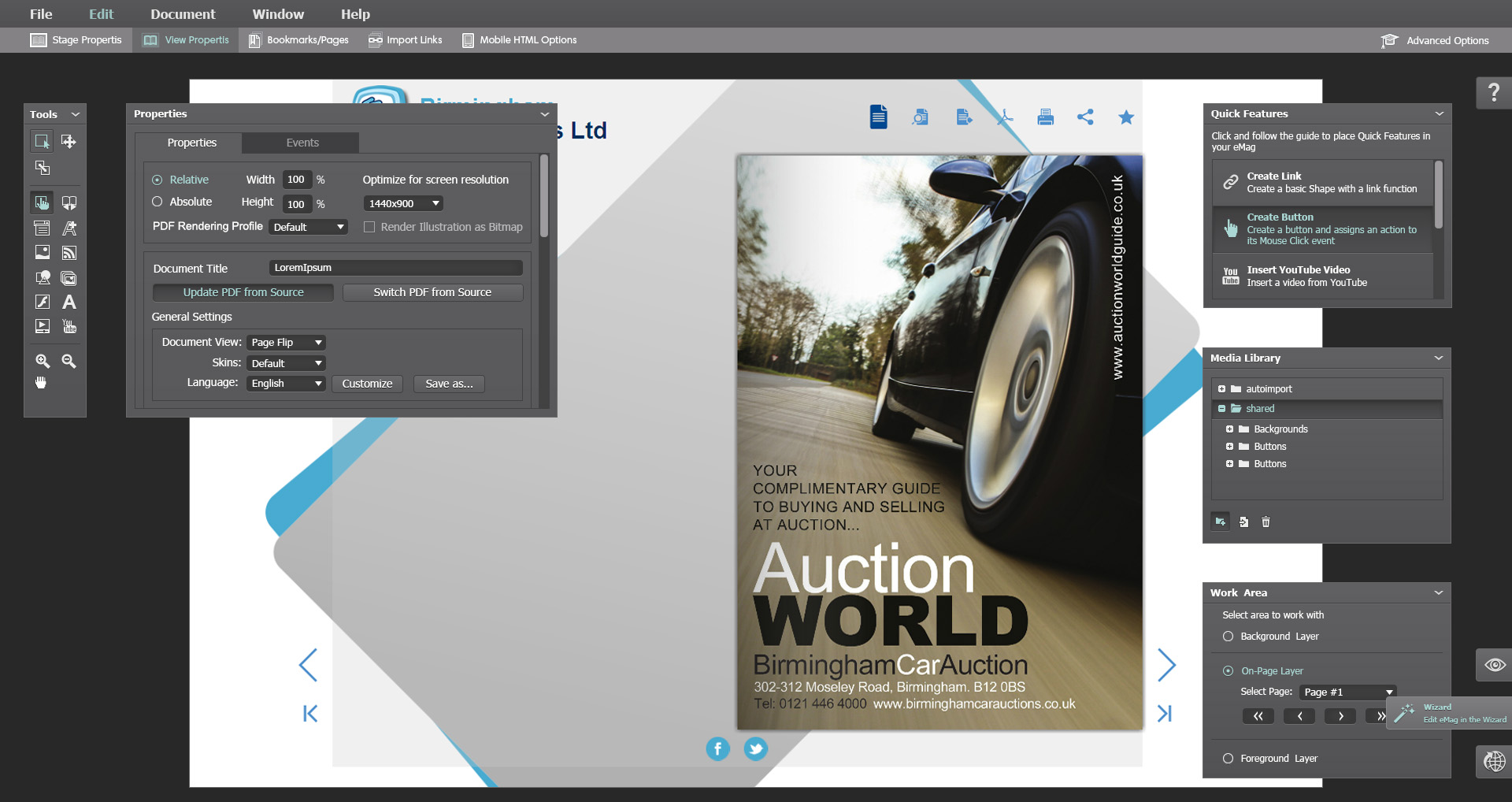 Above: A PDF has been selected and the user has full access to the design tools.
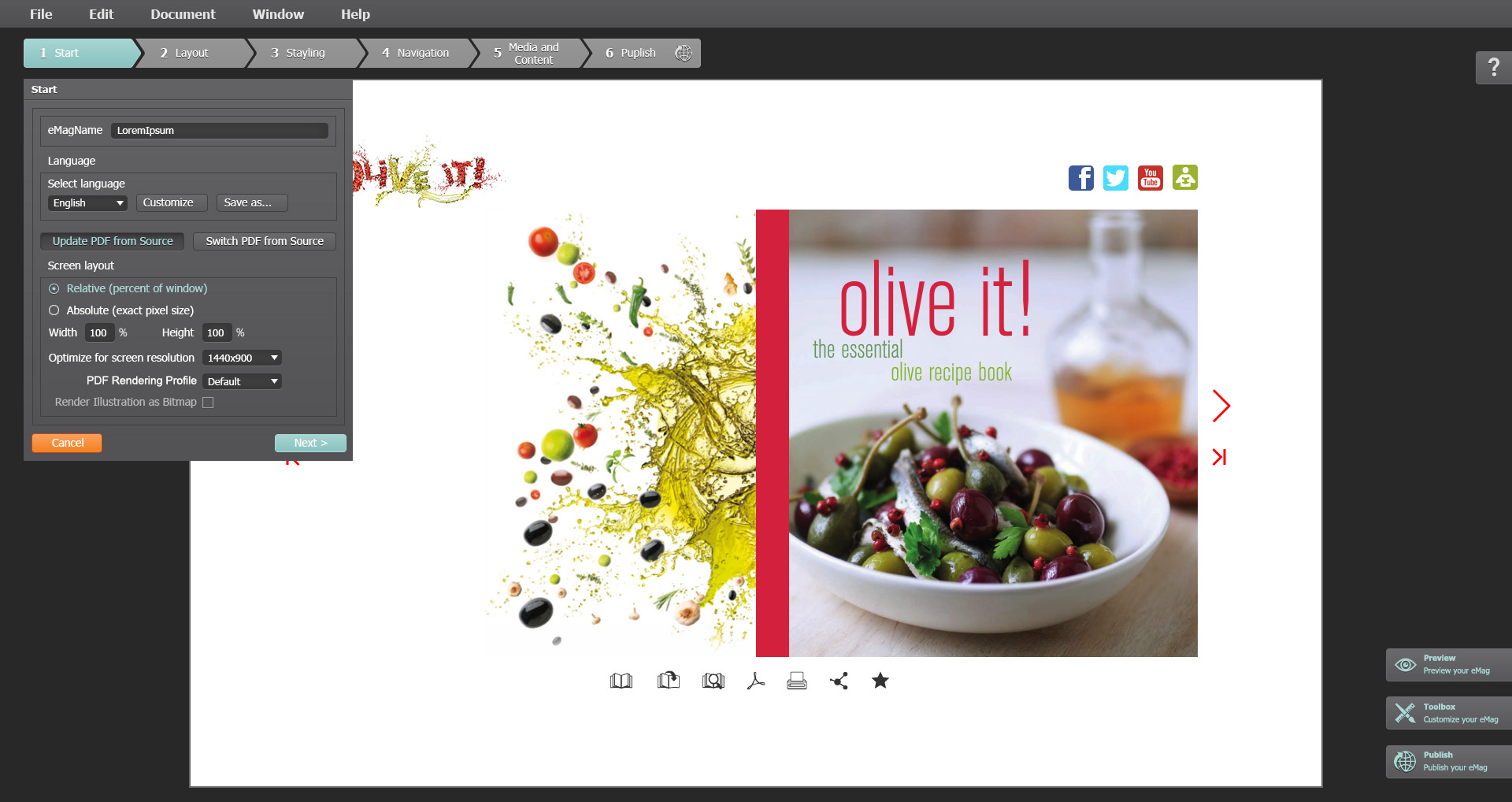 Above: The Wizard provides a set of numbered steps to customize the navigation, page behaviour and interactive content of the finished publication. The template provides a default for each step, allowing the user to skip through the wizard quickly if needed.
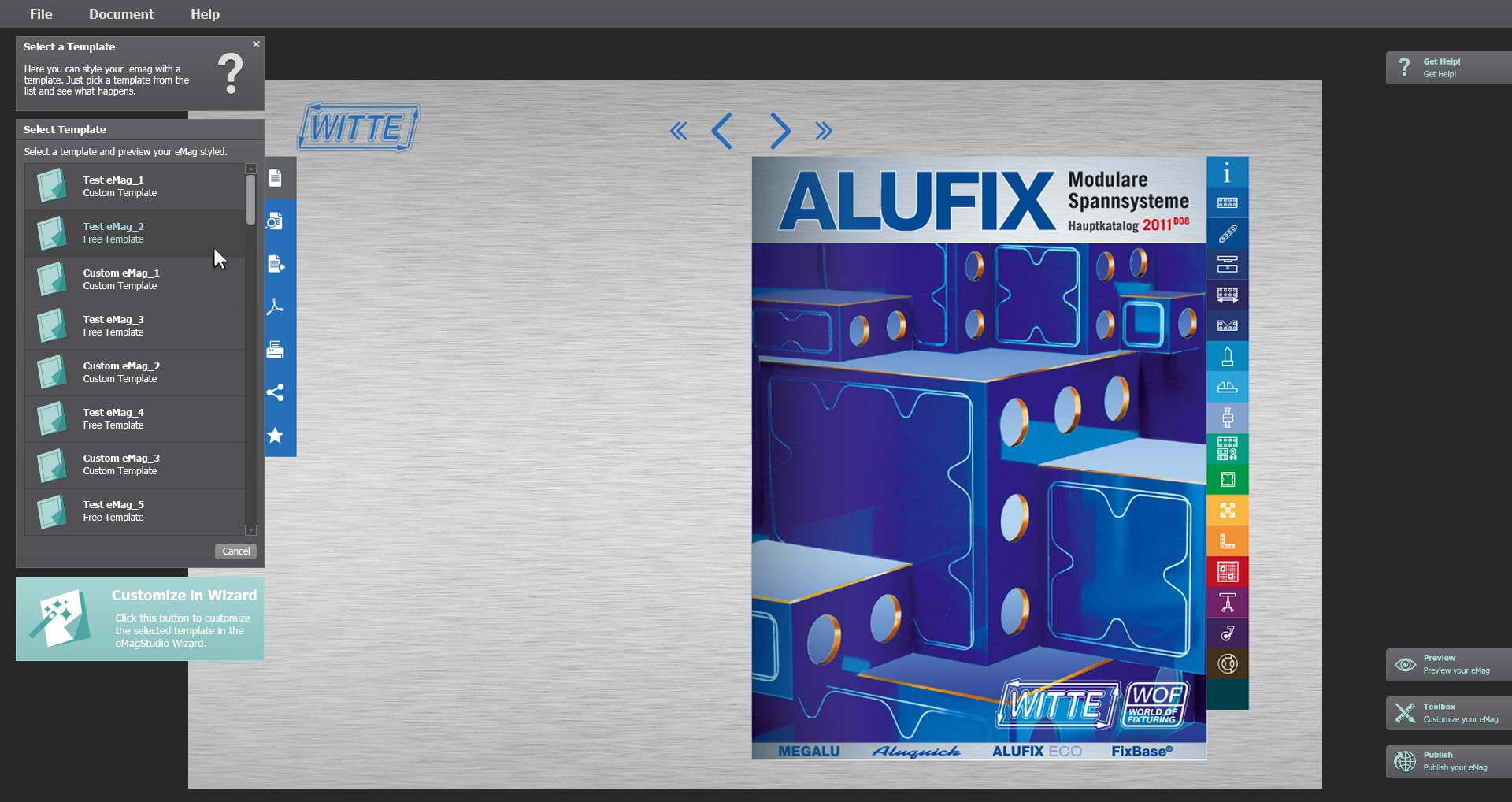 Above: The Template workflow reduces the amount of tools to just the template selector, enabling the user to select a previously created design or one of the many included ones. With this mode, you can go from PDF to finished publication in seconds.
 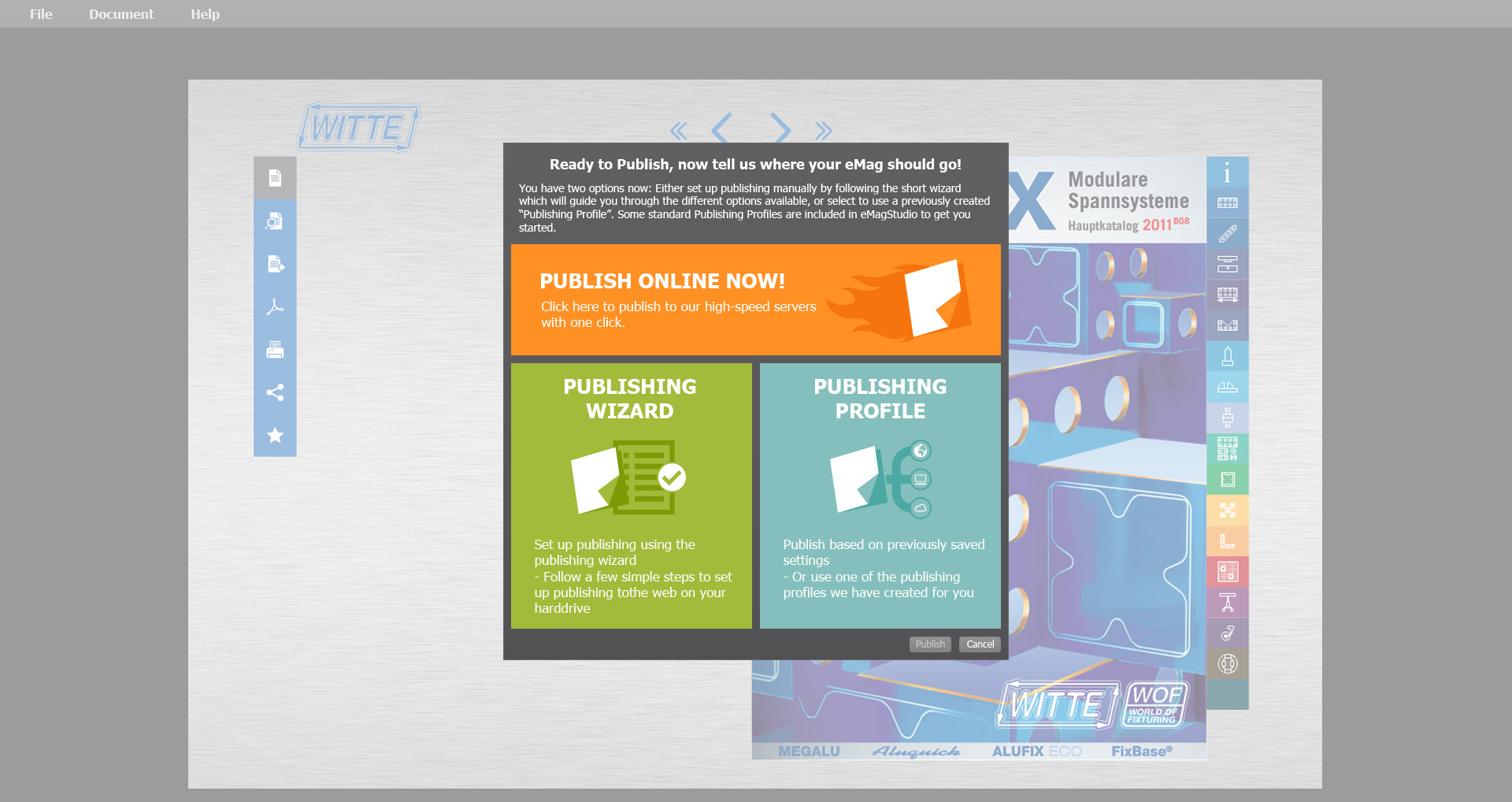 Above: The user has clicked the Publish button and is again provided with a few different means for achieving it, either by re-using a previously set up publishing profile, going through the wizard or using the one-click option uploading the publication to the eMagCreator cloud.
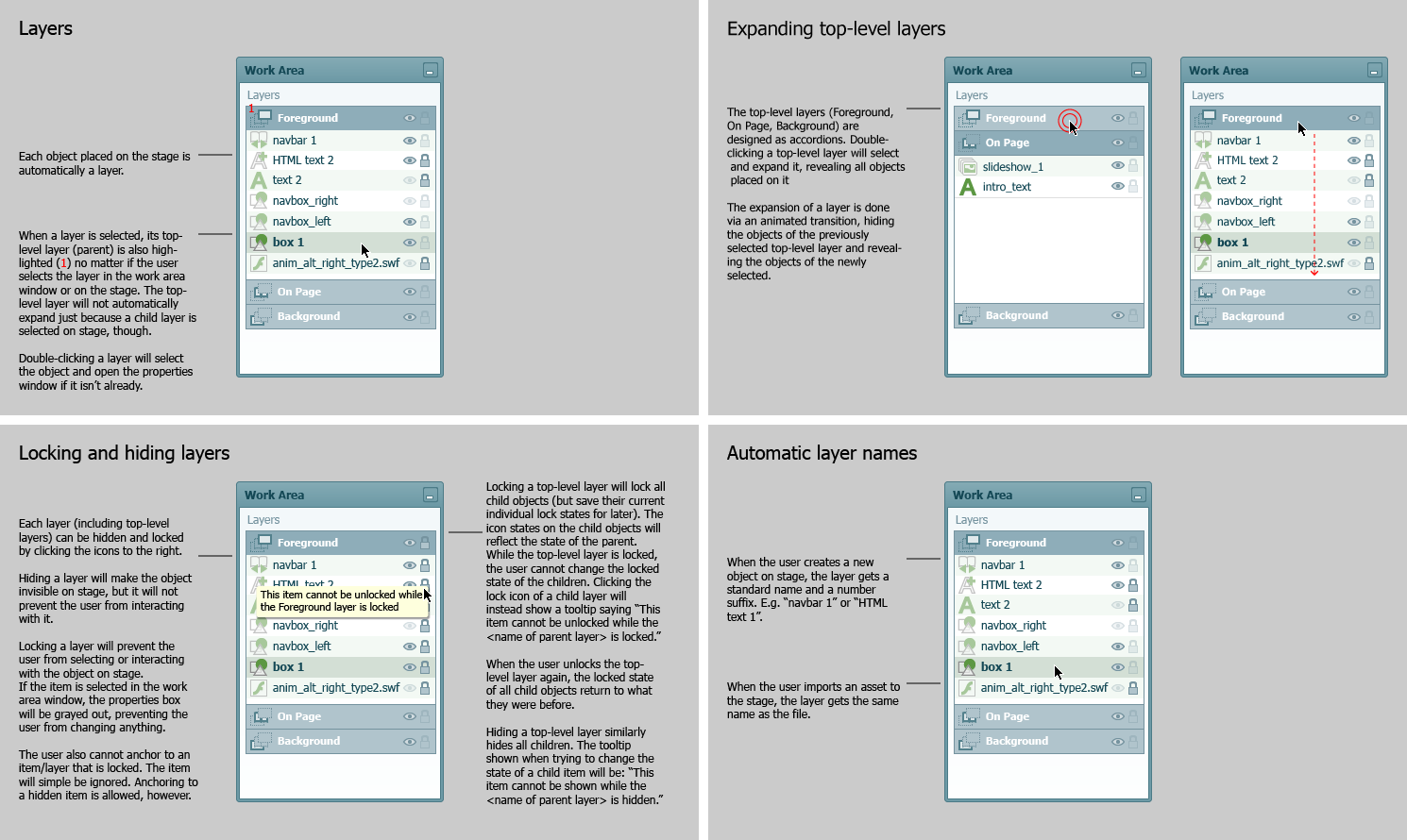
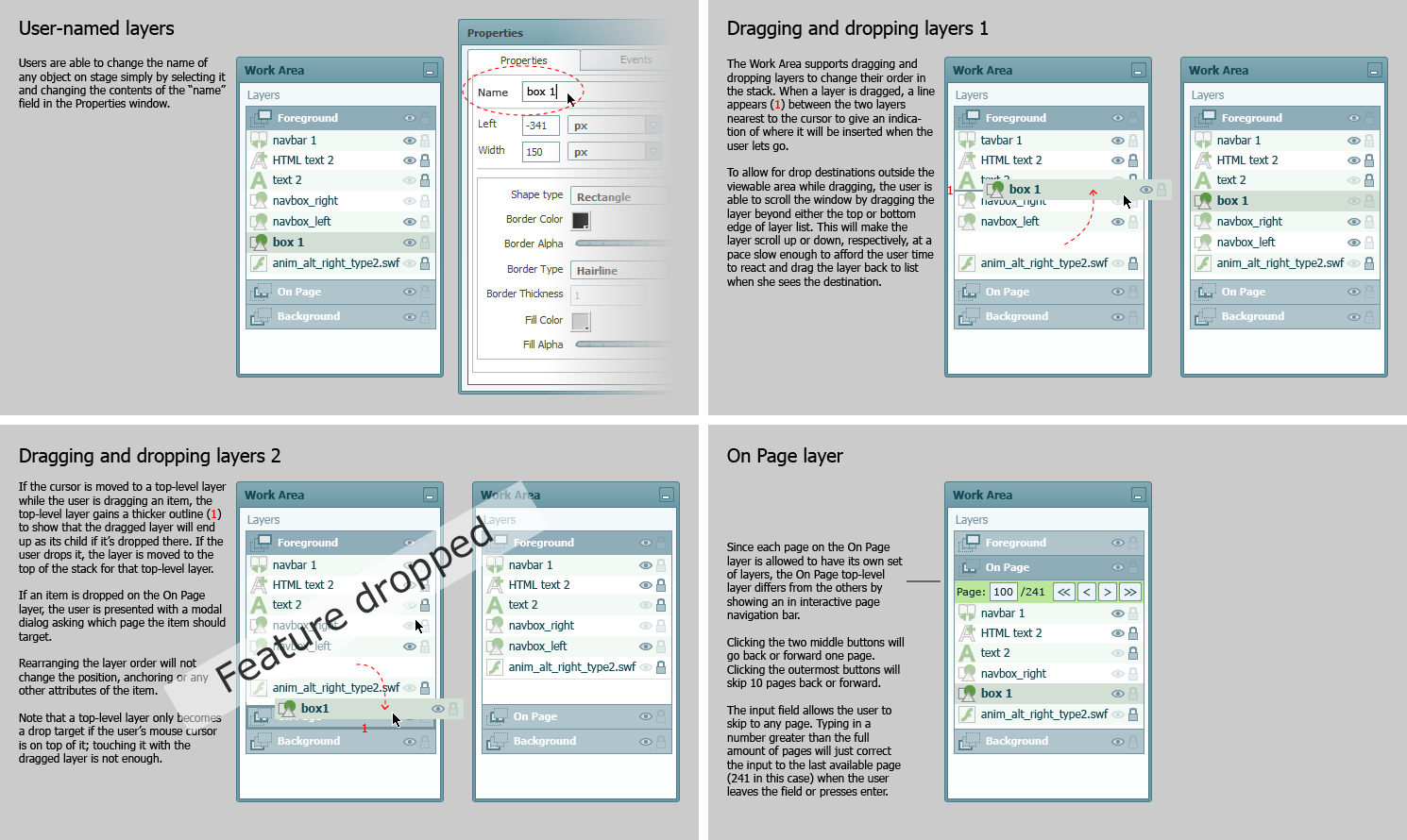
This next bit shows a few snippets from the design specification document. These particular sections deal with the layout and navigational behaviour of the layers palette:
Skinning
Adobe Air integration makes the design suite easy to reskin and whitelabel, making it an attractive proposition for resellers and custom enterprise rollouts. I am responsible for maintaining skin files and skinning documentation as well.
Here is an example of a previous skin:
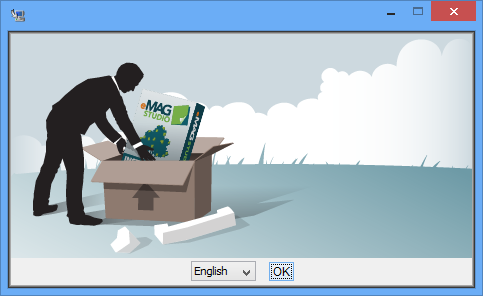 Above: The installer
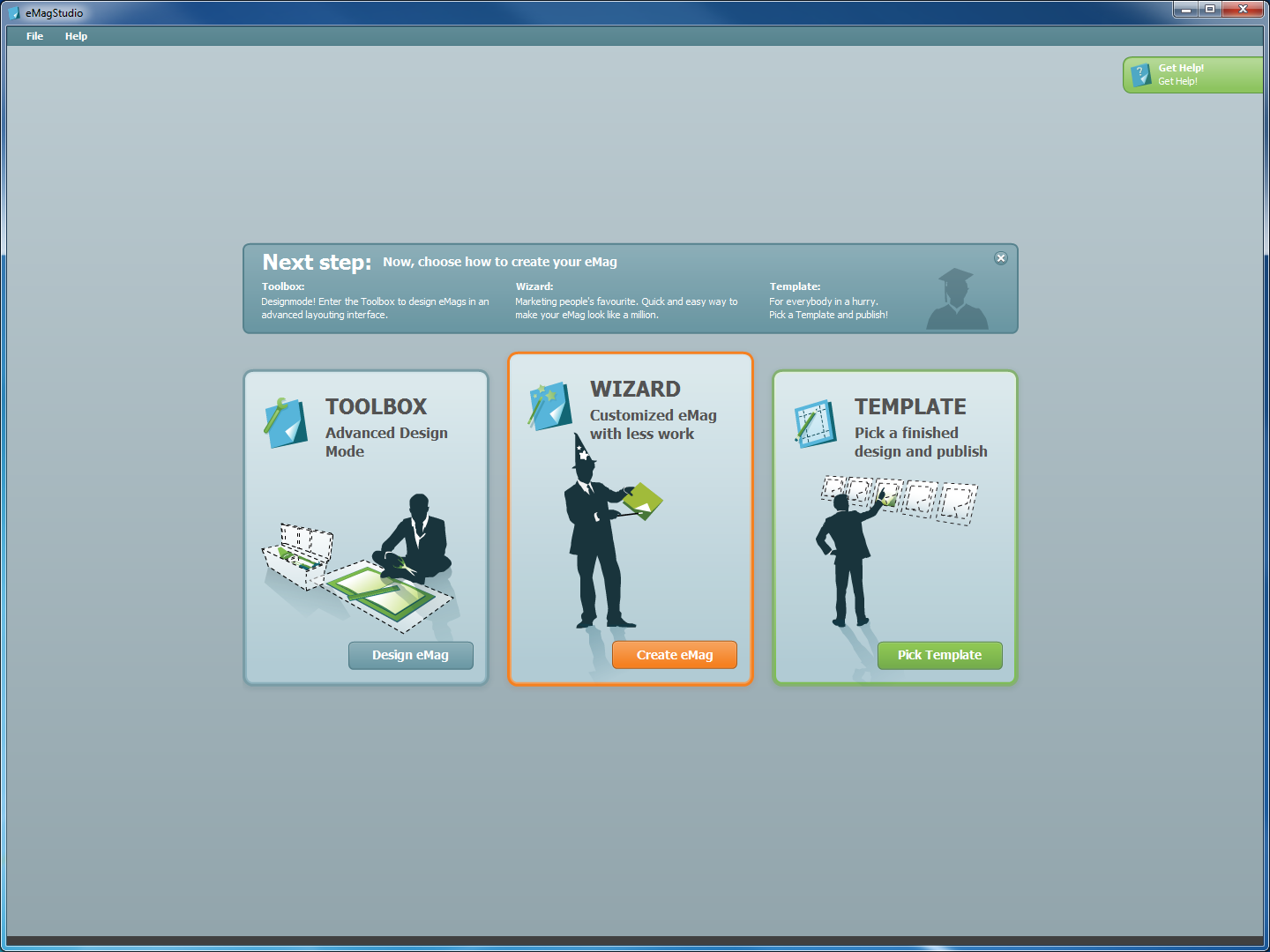 Above: The welcome screen.
Above: The user has picked the “Create New eMag” option and is presented with the three different workflows.
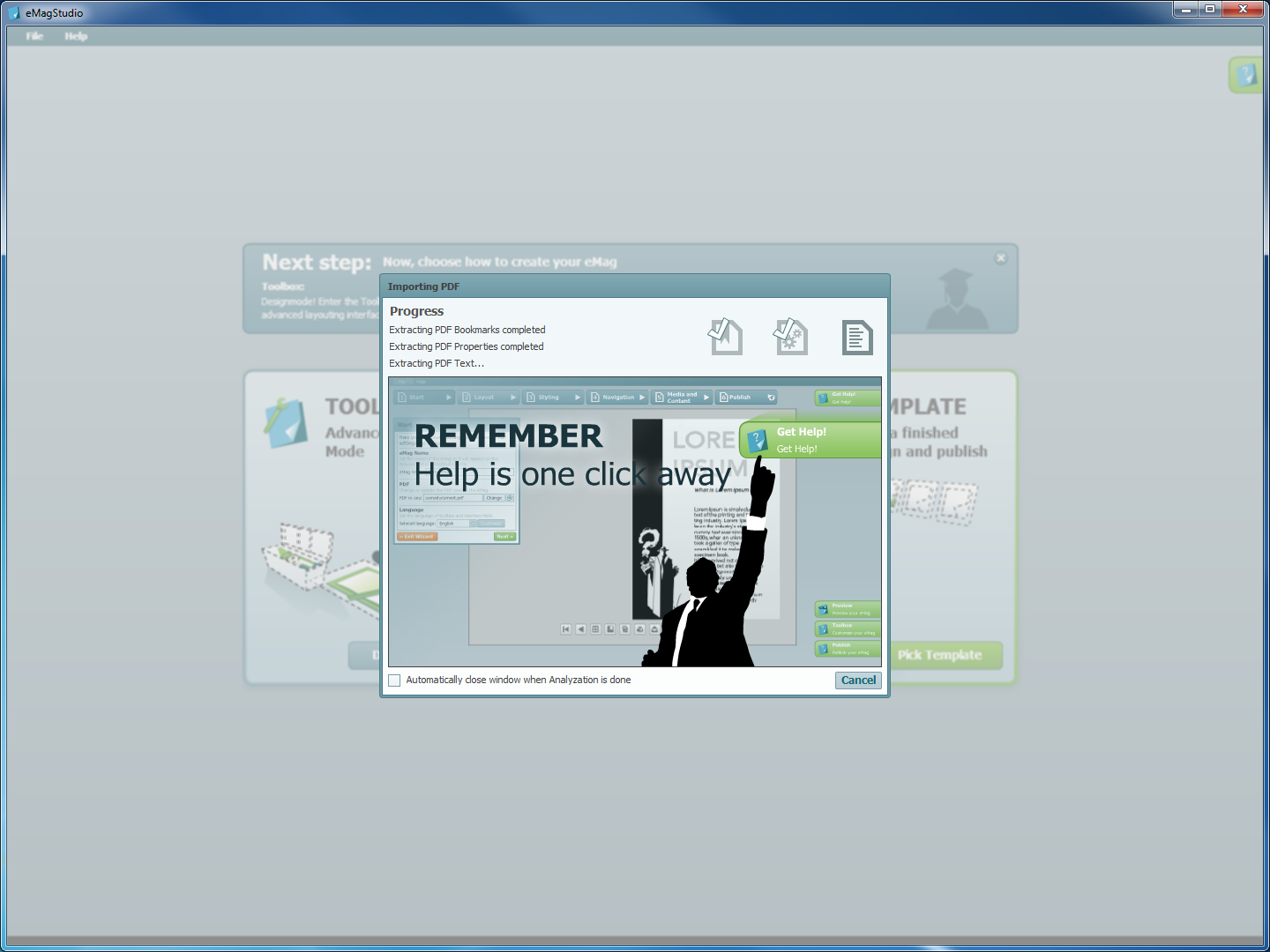 Above: While the PDF is being analyzed and the environment is set up, the application reminds the user of the online Help feature.
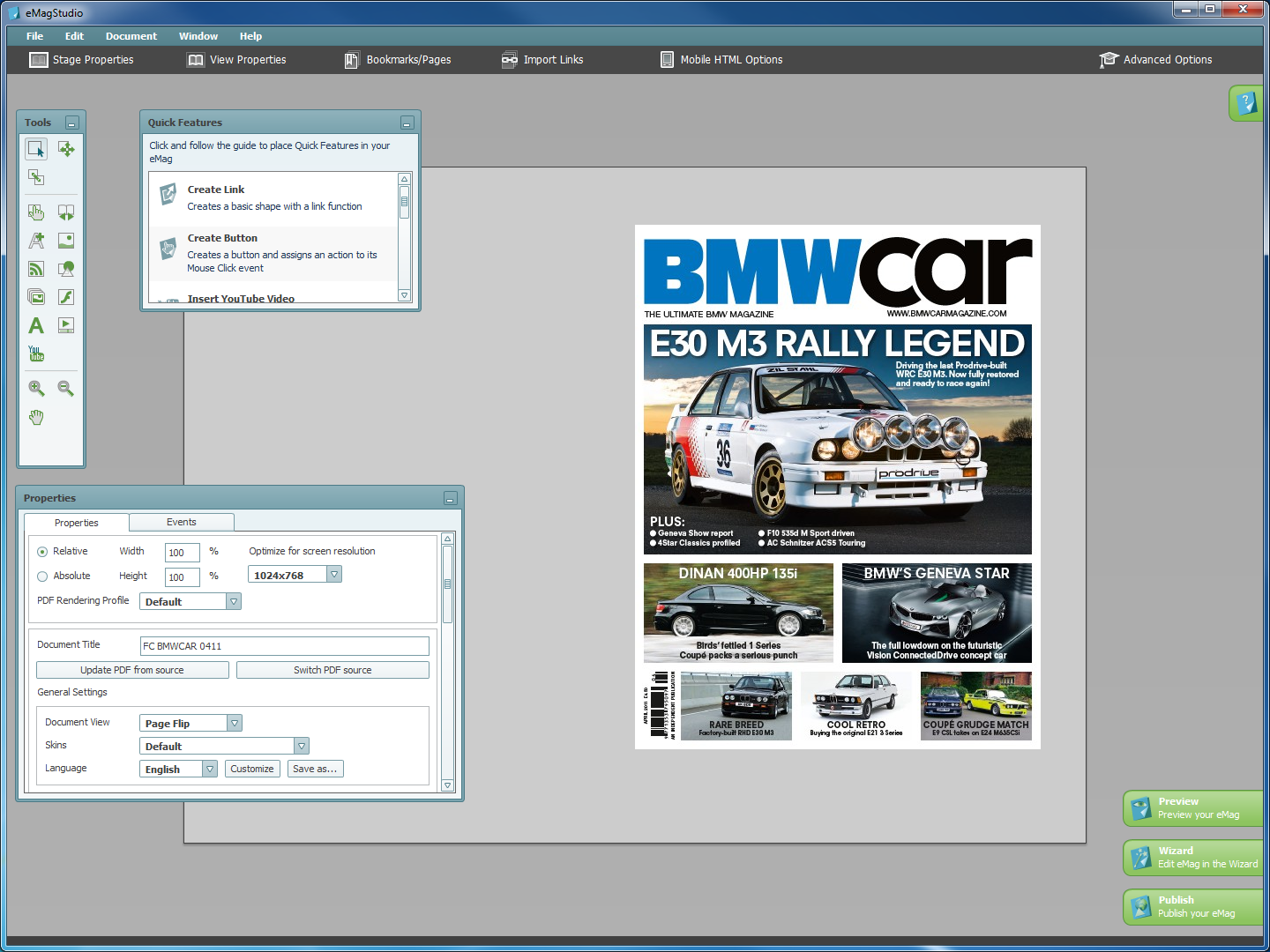 Above: The toolbox mode is selected and the application environment is set up according to the selected mode.
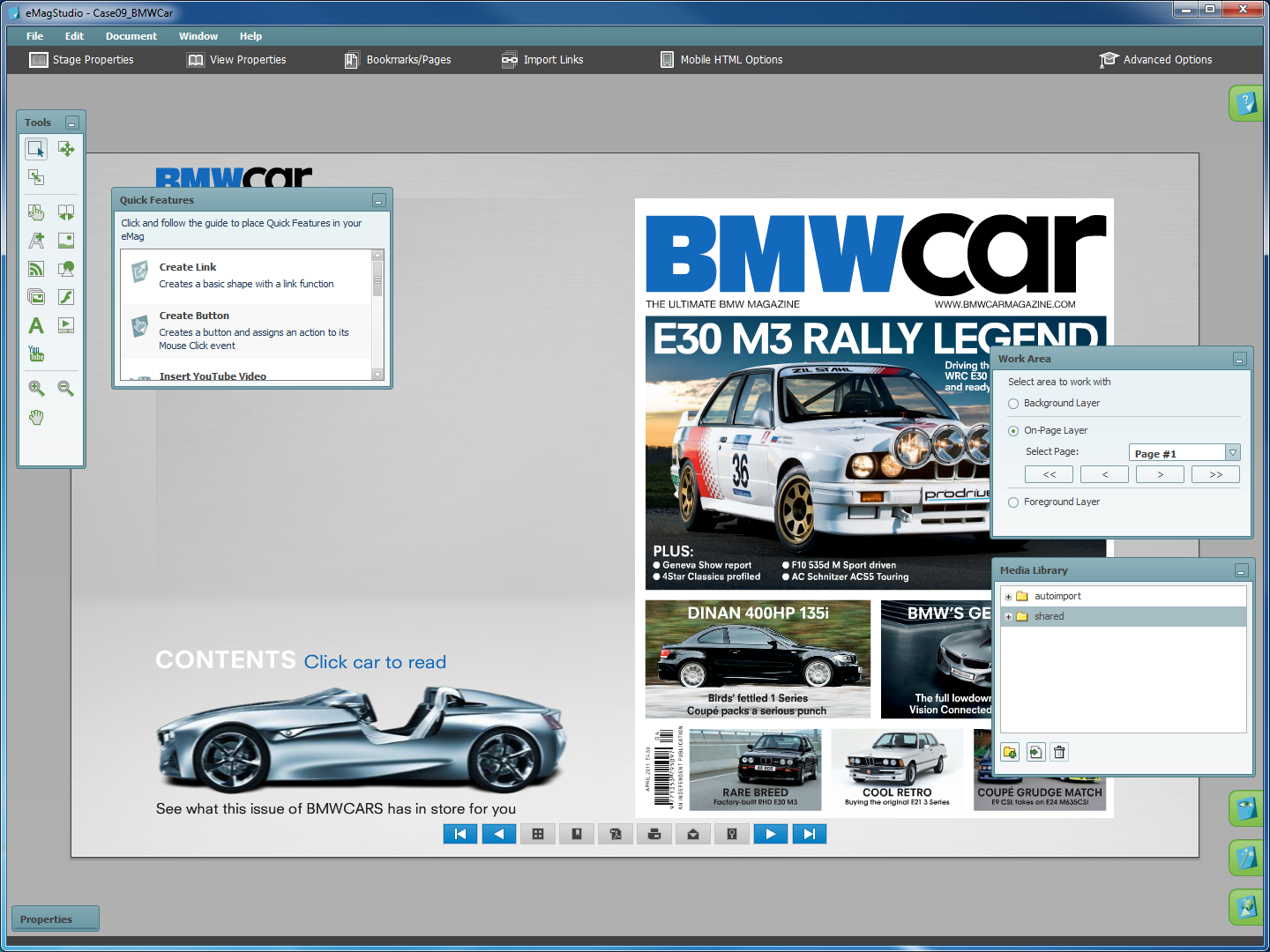 Above: The user has added interactive elements to the eMag, such as custom transport controls for easy page navigation and an animated element in the form of a car driving out of the pages.
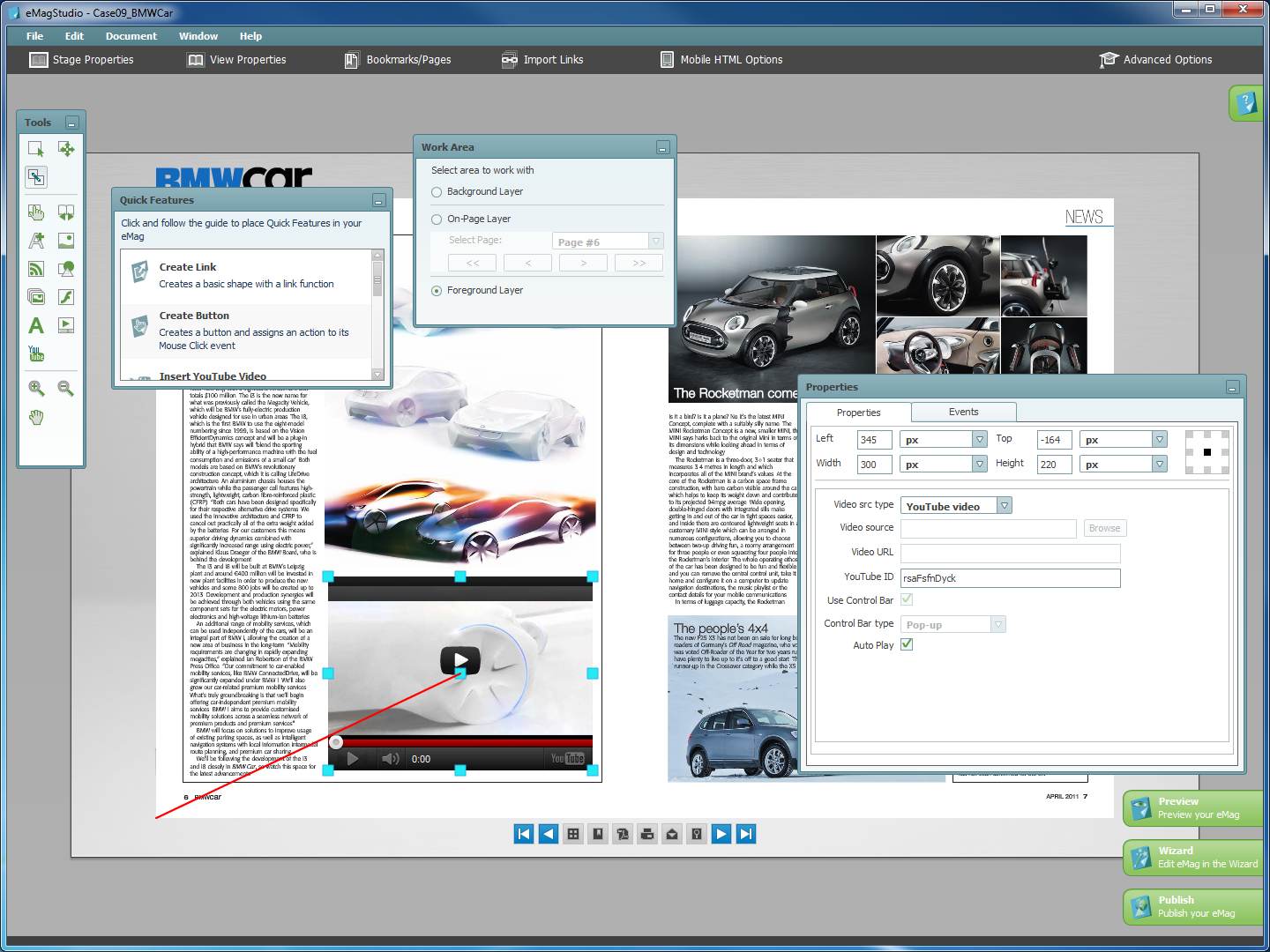 Above: The user is adding a YouTube video into the magazine and is in the process of anchoring it to remain at a fixed position from the corner of the page.
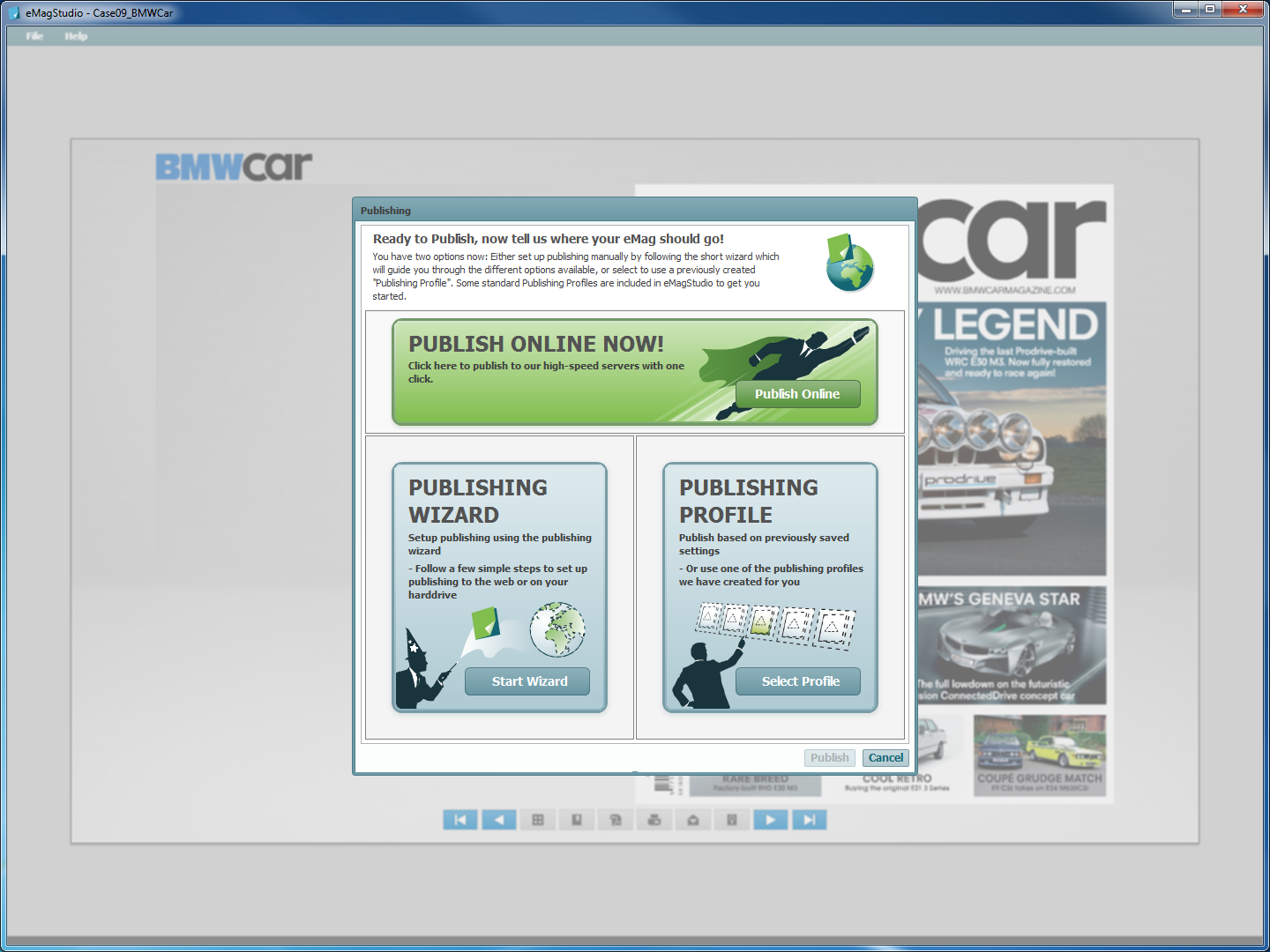 Above: The user has clicked the Publish button and will now have to select the publishing method.
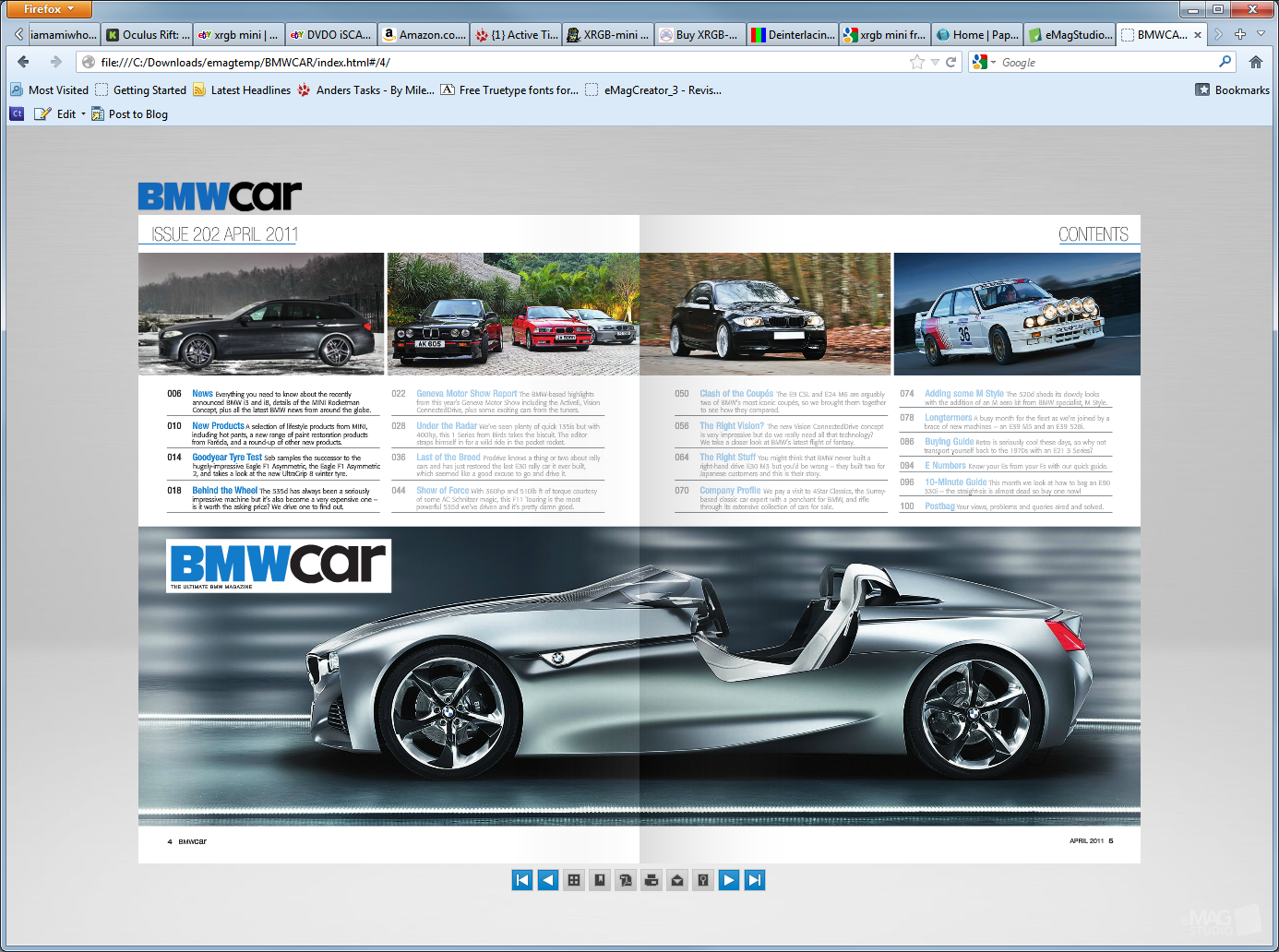 Above: After the process finishes, the eMag is opened in the browser.