Keepit develops a cloud-based, multiplatform smart backup and file sharing solutions for enterprise and consumers. It backs up not only devices, but also services like social media accounts and Office 365.
Keepit Lifestream was a project I was spearheading. It does away with Keepit‘s heavy UI aimed at IT-professionals in favor of something that’s simple, engaging and allows regular users to easily browse, search and filter their data across any device, social media- or cloud service.
I designed every aspect of the web application, wrote the specifications and provided final assets.
The UI is based around the idea of the lifestream; the fact that every email, video, photo or message marks some small event in people’s lives, and in the digital age, every person generates an endless stream of those moments – a lifestream.
Why this is awesome
The massive amount of data generated by each and every one of us comes with a number of challenges. With photos, videos, documents, contacts and messages residing across laptops, desktops, phones, tablets, social media and cloud services, each effectively acting as a silo with its own closed-off search and management provisions, it is getting increasingly hard for people to find a specific file across the plethora of walled gardens – and even harder to keep it all safe from data loss or share it securely with someone.
Keepit is uniquely positioned to solve these problems. Since Keepit already backs up data across a constantly growing number of devices and online services, users stand to benefit immensely from a service that allows them to also have access to all their data via a single unified interface from any device – no matter where they are.
There was just one problem: Due to its historical focus on B2B, Keepit was struggling to enter the consumer market. It was held back by a user interface streamlined for enterprise IT-admins and the entire UI and user experience had to be re-thought from the ground up to cater to consumers. Keepit Lifestream was my attempt at just that – unlocking the power of Keepit and wooing ordinary users through sheer ease of use, wide platform support and effective search and browsing tools powered by Keepit’s in-house developed file store, heuristics and metadata aggregation engine on the back-end.
The project is still a work in progress.
 Above: The Keepit lifestream logo. The rectangles mimic the grid of thumbnails in the lifestream interface with the center band depicting the user’s personal flow.
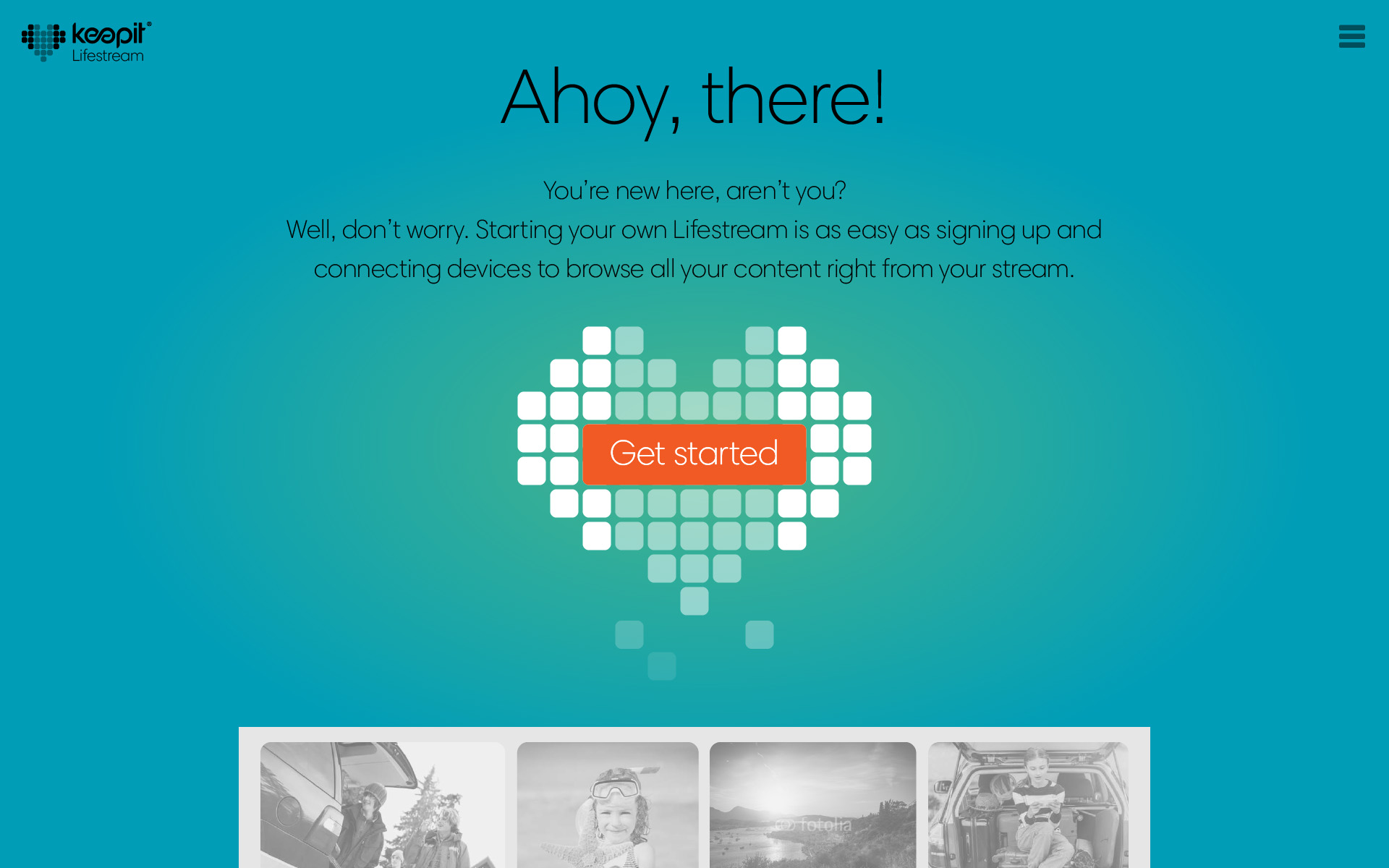 Above: A friendly call to action page shows the logo with a subtle animated data drip effect. Visible beneath it is the very beginning of a lifestream – acting as a teaser.
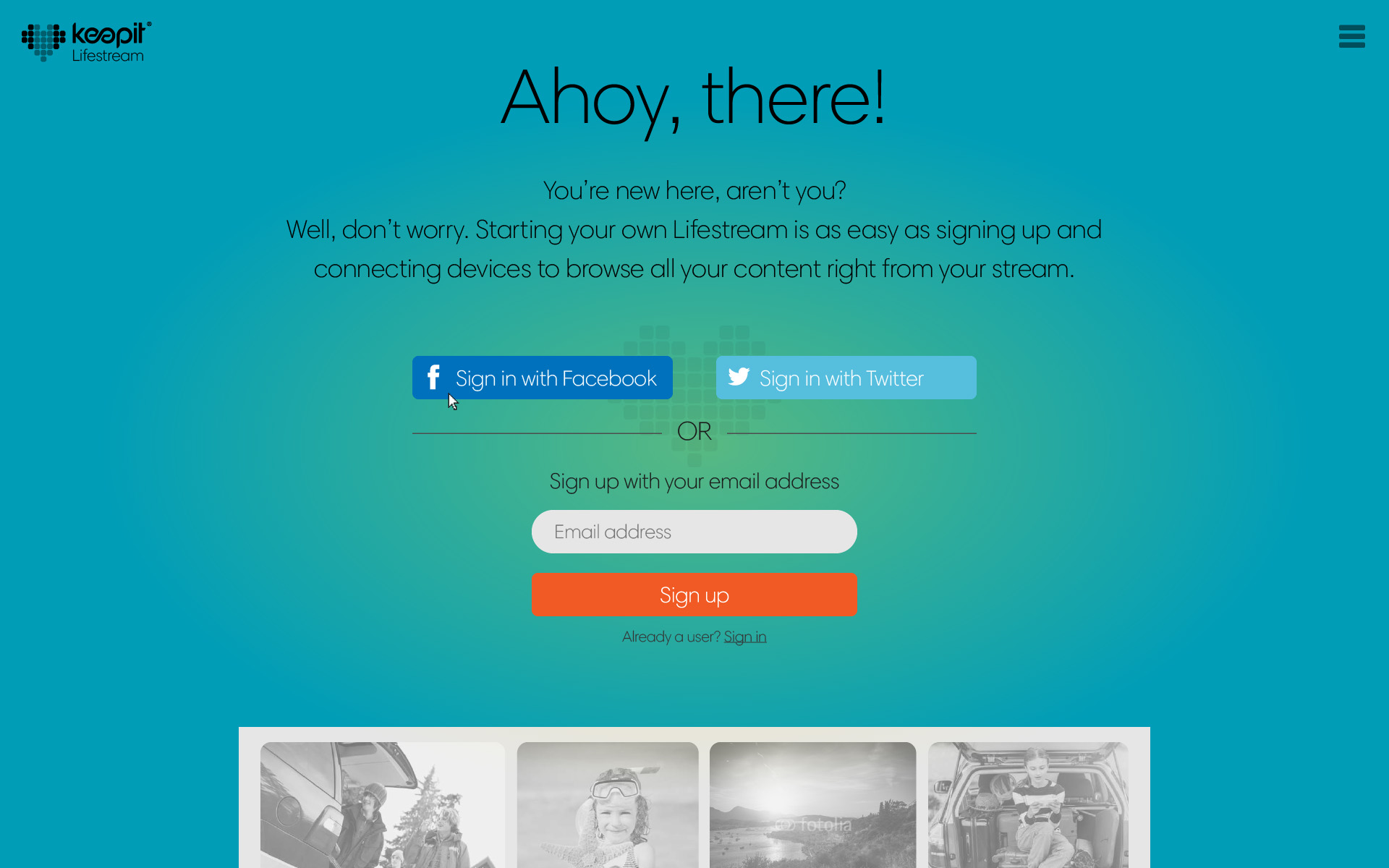 Above: After clicking the call to action button, the logo withdraws to the background and the signup options appear.
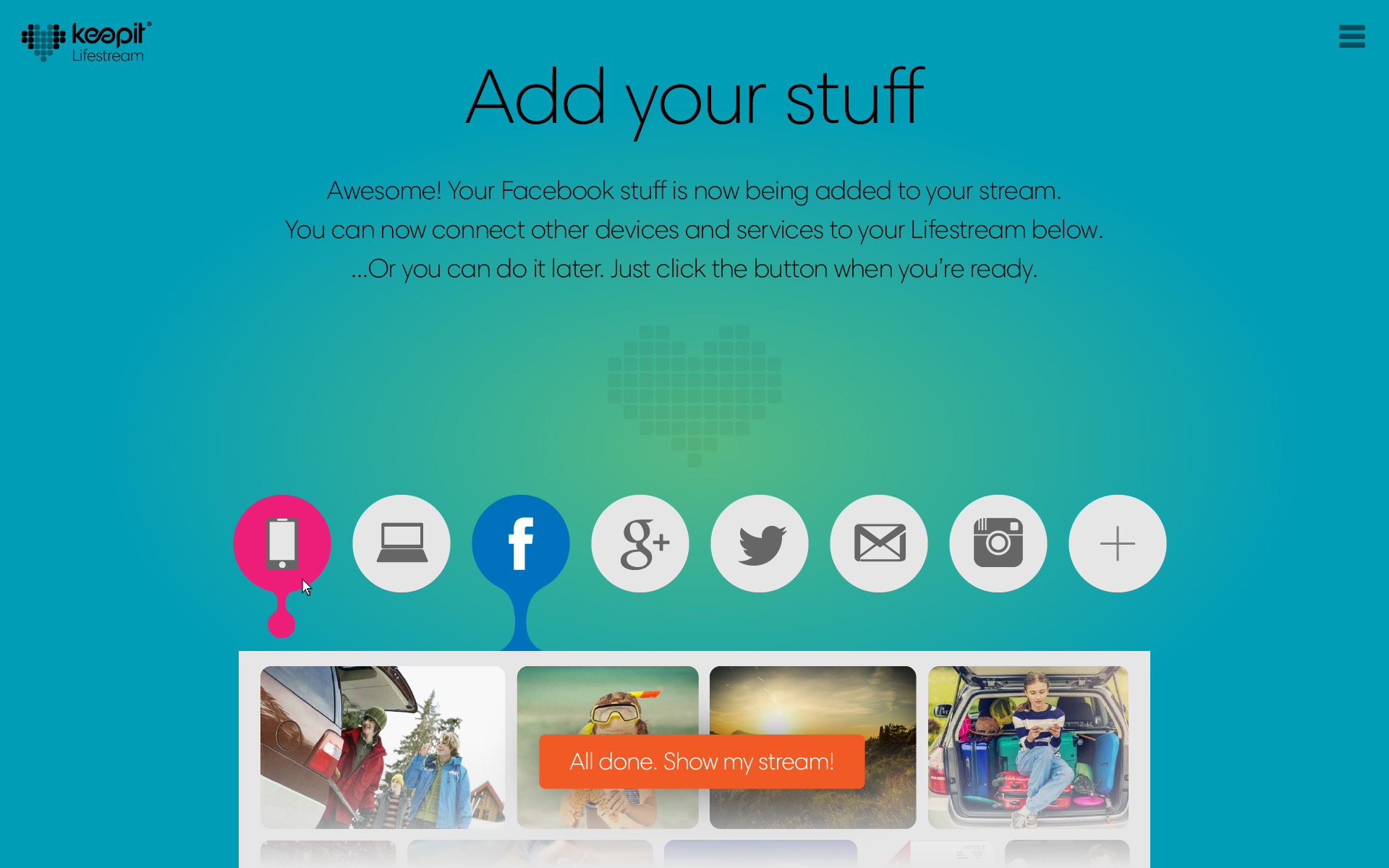 Above: Having signed up via Facebook, the Lifestream has already made a connection to that service and is feeding the data from it into the user’s lifestream. Connections are presented very literal as droplets feeding into the stream.
As the user hovers the mouse over each device or service, a drop animates beneath it as if it’s reaching for the stream. When the user is done connecting devices and services, she simply clicks “All done. Show my stream!”.
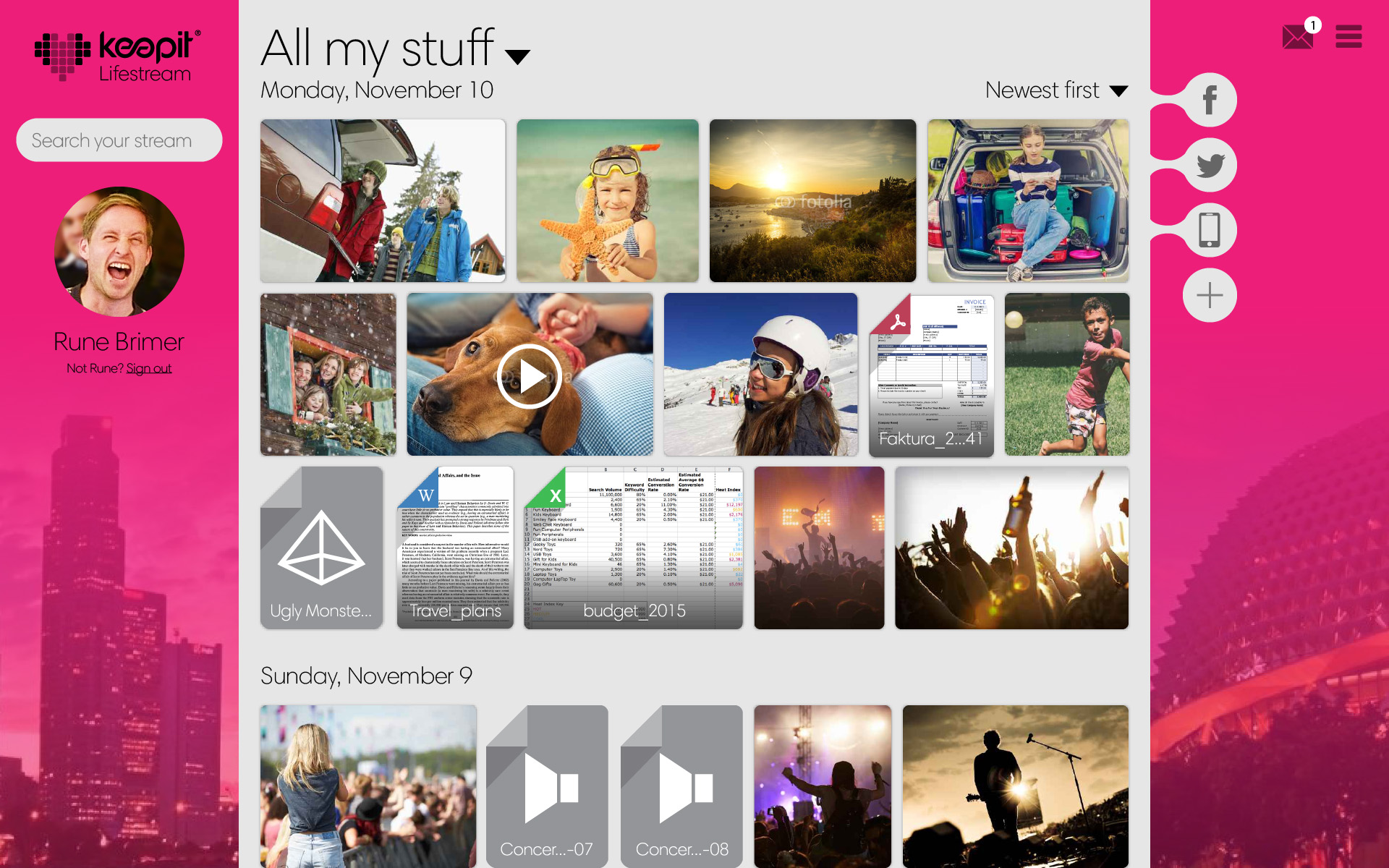 Above: The user has clicked the button and the stream runs to the top of the screen, filling it out. The devices and services currently being backed up by Keepit is visible to the right. Since all streams are personal, the interface offers some level of skinning and visual customization as shown here with the pink panorama background.
Above: By default, the content is sorted and divided by date and time with each day being signified by a small break in the flow. In its first iteration, the interface offers a set of simple filtering options based on data type…
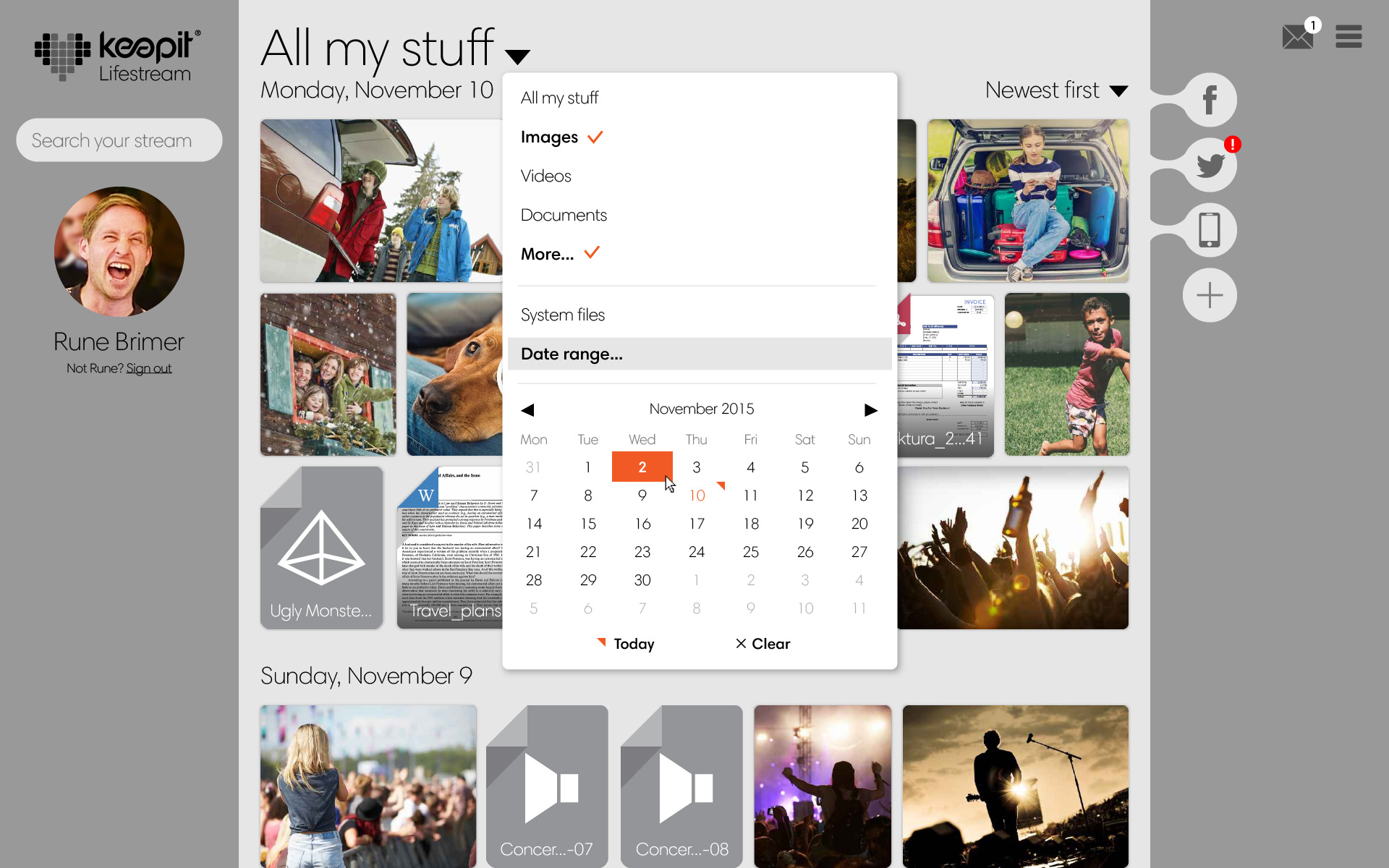 Above: …or date range.
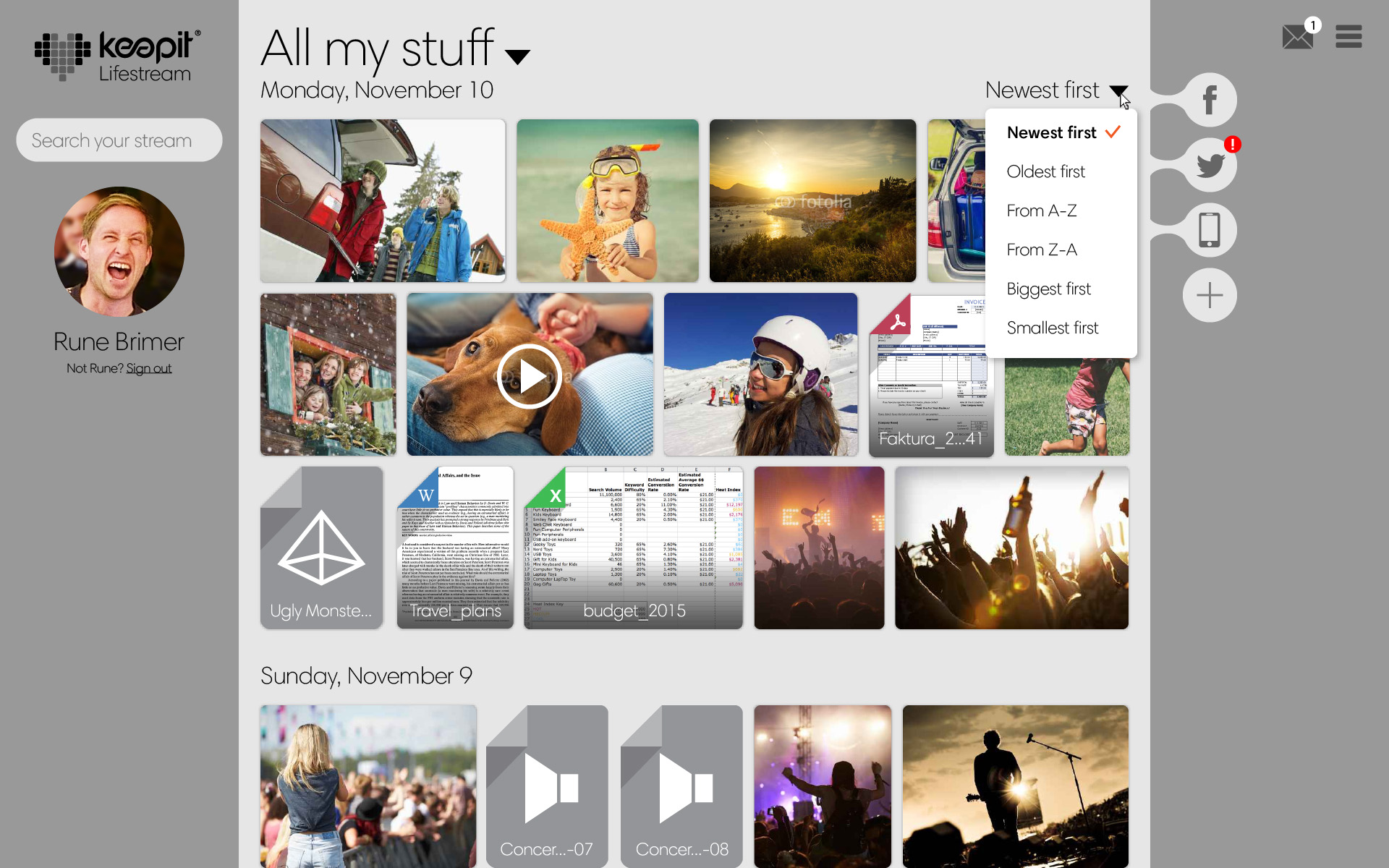 Above: Sorting options are located in the upper right corner of the header where users will expect them. The list of options uses regular phrases instead of iconography.
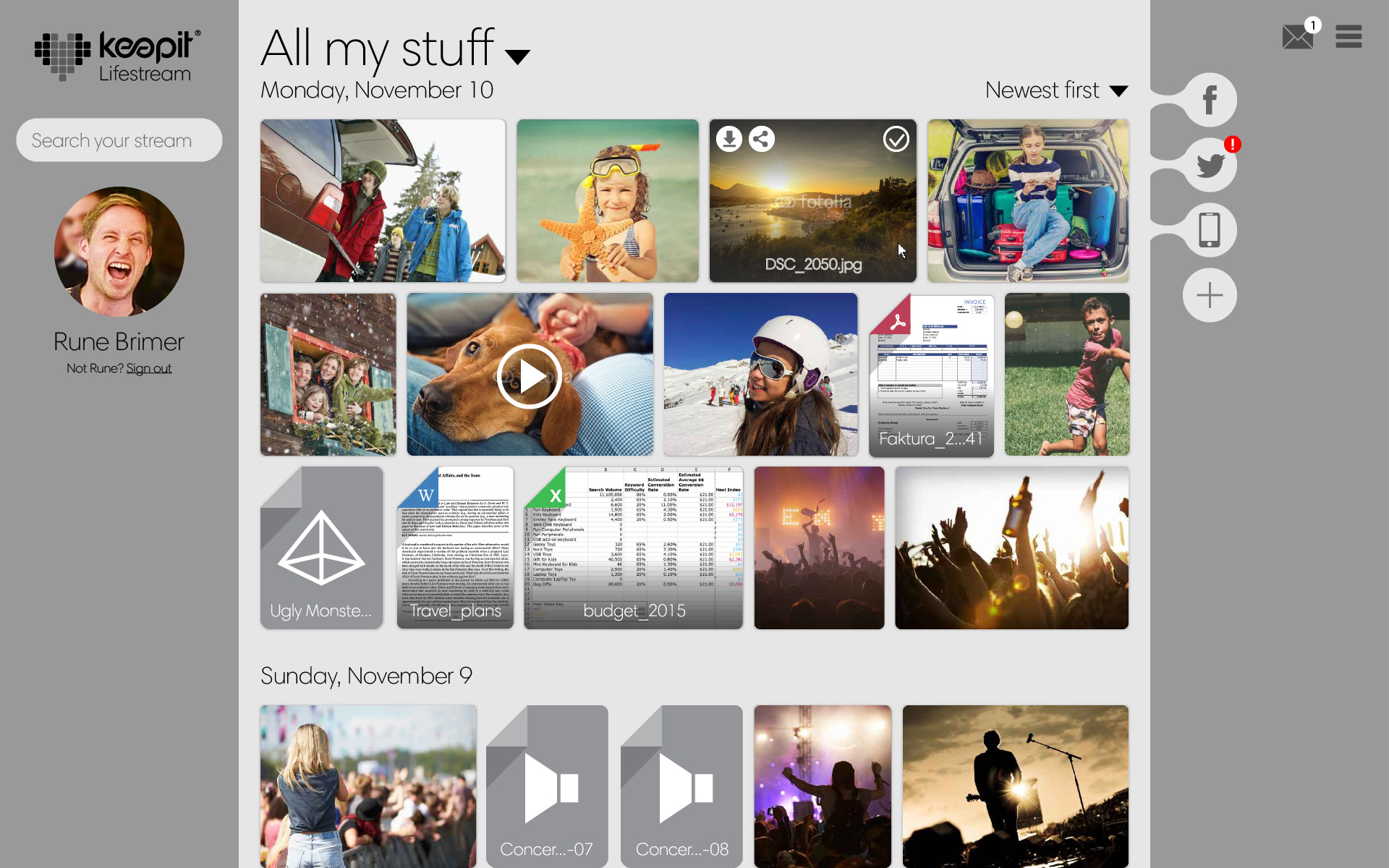 Above: In keeping with the philosophy of keeping the user’s content in focus and hiding away unnecessary clutter, hovering over any thumbnail will show the file name, download and sharing options as well as multi-select toggle icon.
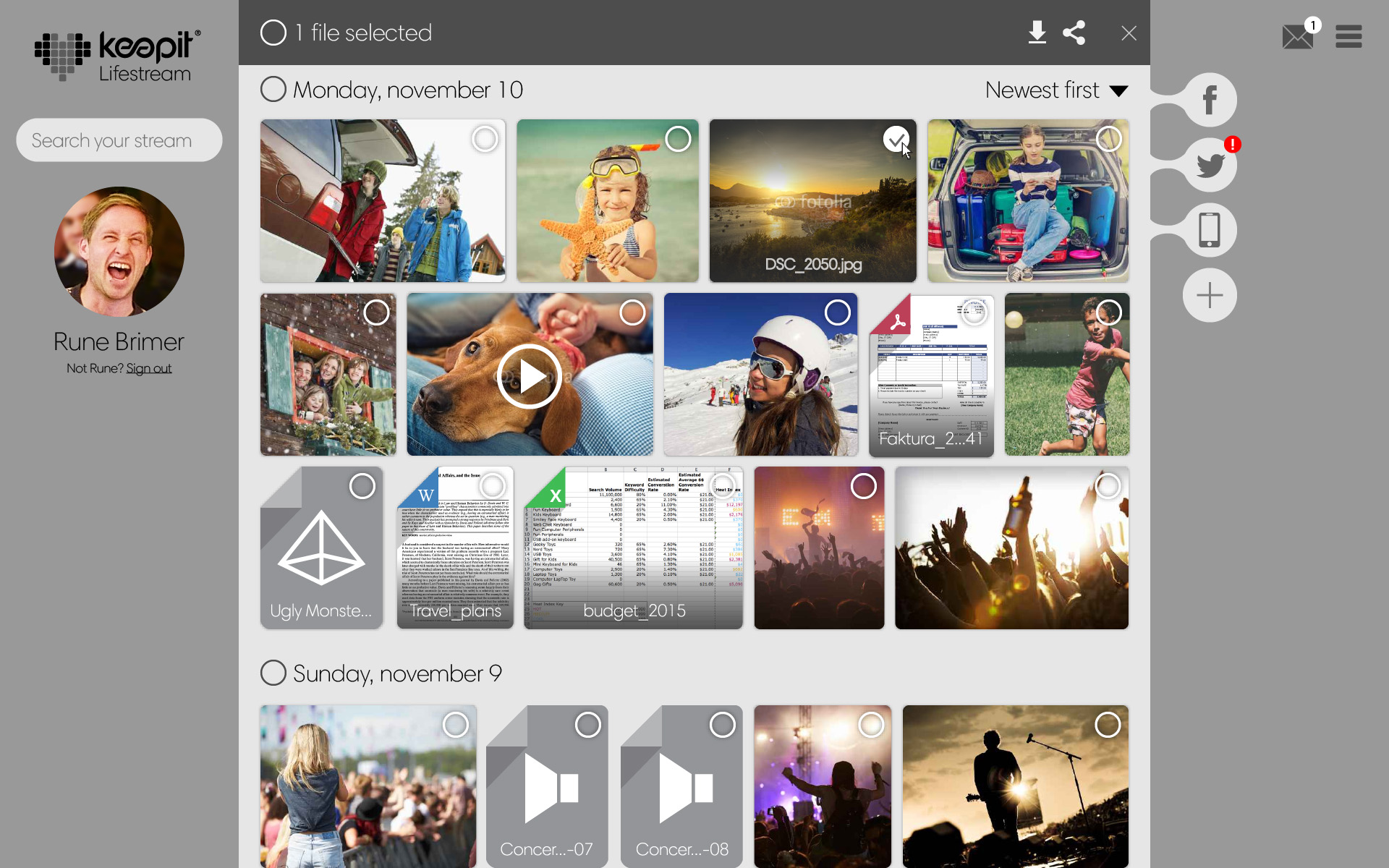 Above: Clicking the multi-select checkbox on a thumbnail will activate the multi-select mode and make selection checkboxes appear on other thumbnails in the stream as well. Appearing at the top is a toolbar allowing the user to perform actions on all selected files.
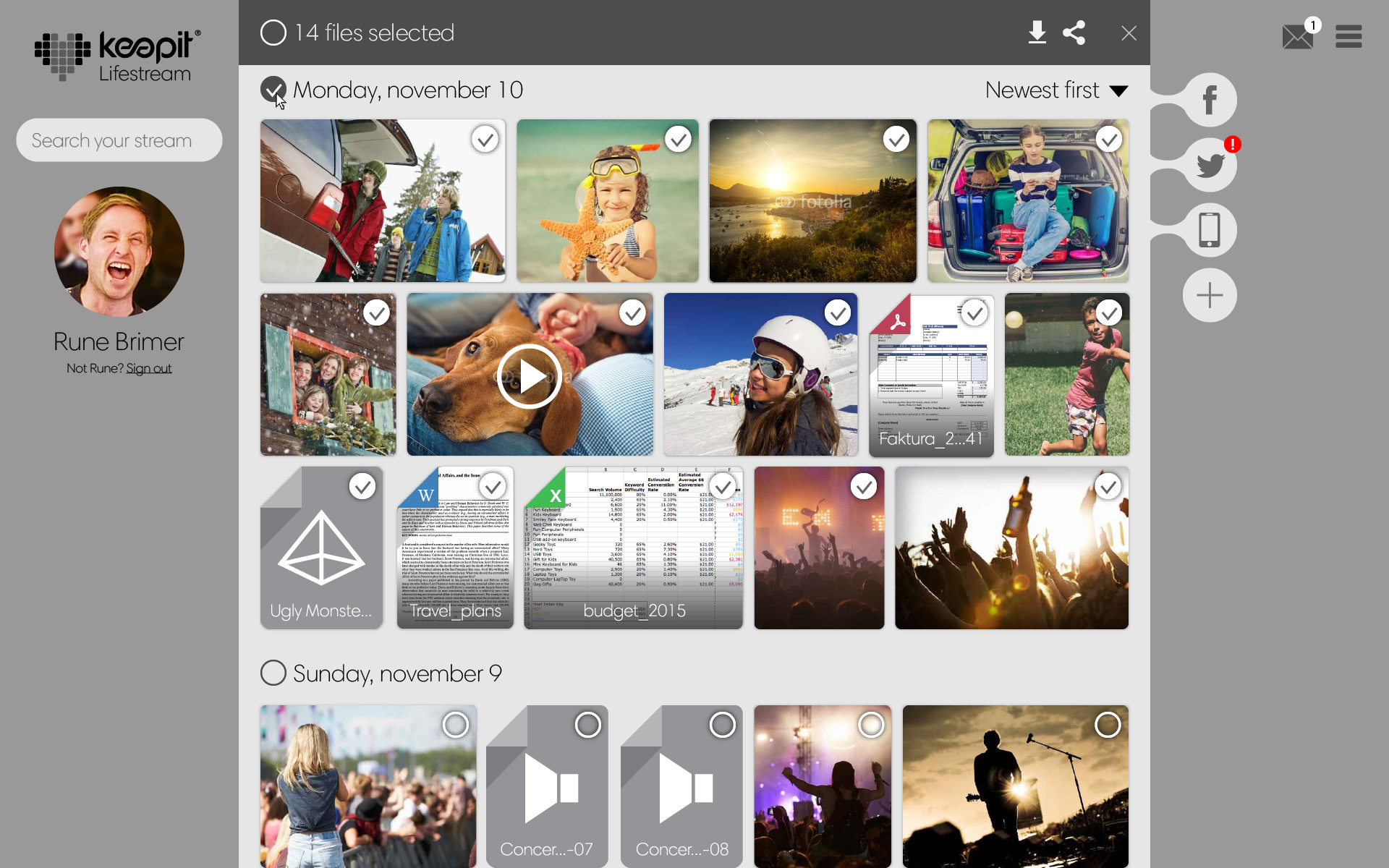 Above: By clicking the multi-select checkbox near the date header, the user has selected all files for that particular day and can choose to either share or download it.
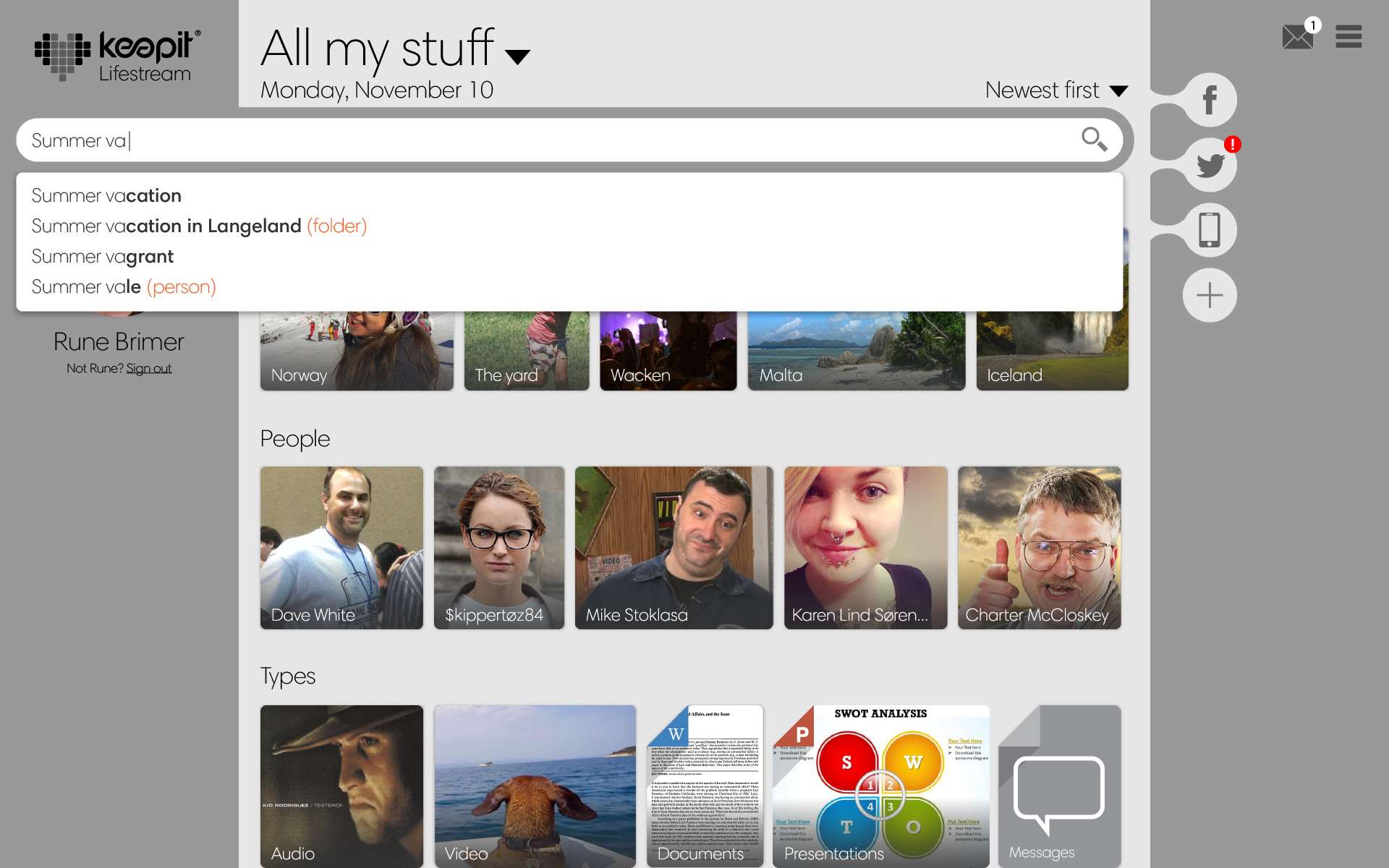 Above: Clicking the search field will expand it and search suggestions based on the user’s actual data will trickle in asynchronously as she types. Note that the lifestream also changes into a list of categories based on metadata and data types. The point of this is both to help the user get to her content quicker but also to teach her different ways of searching.
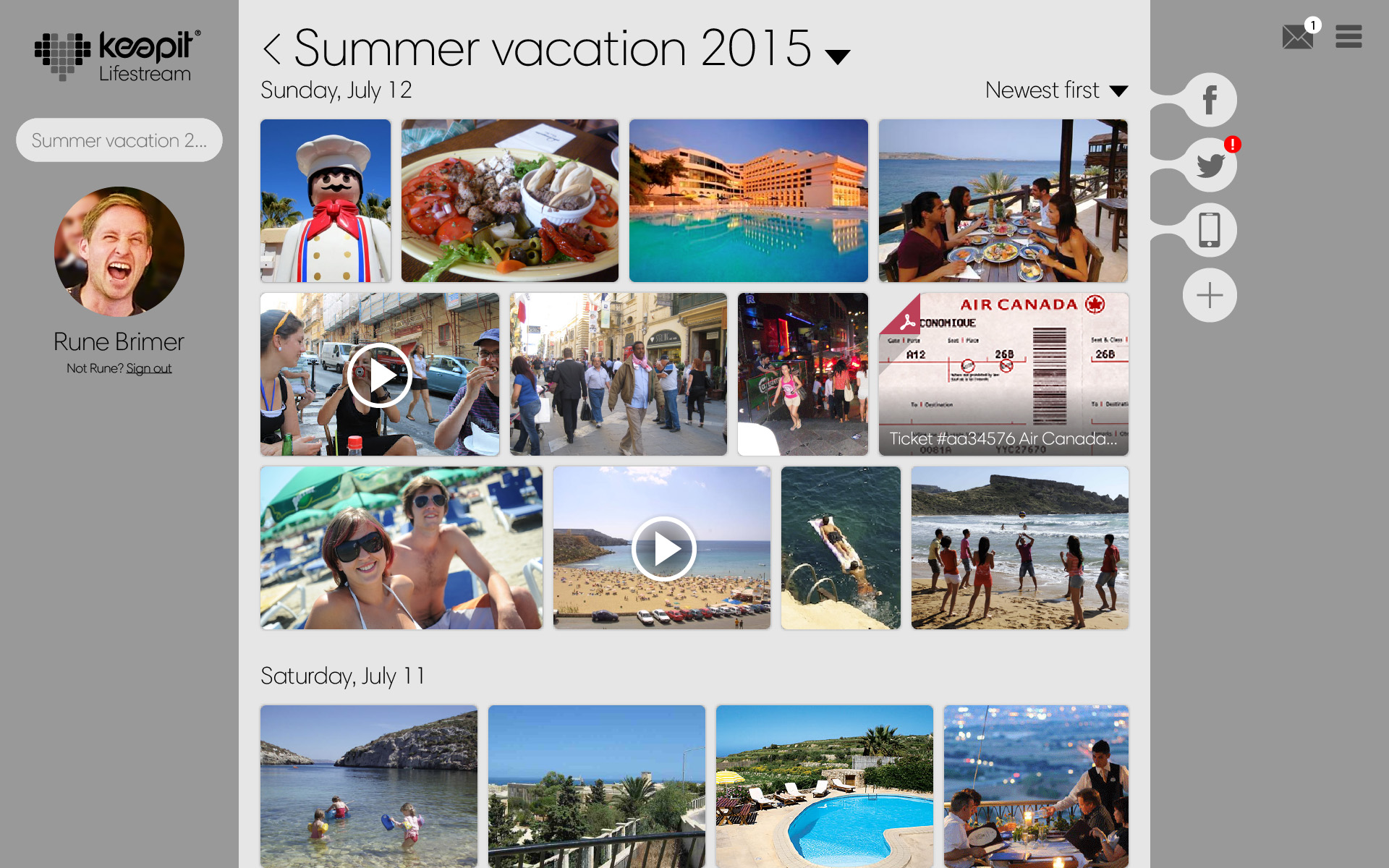 Above: The user has searched for “Summer Vacation 2015”, and all the user’s data is sorted by relevance to that query. This is not just based on filenames, but also dates, exif data, folder proximity and a plethora of other data points.
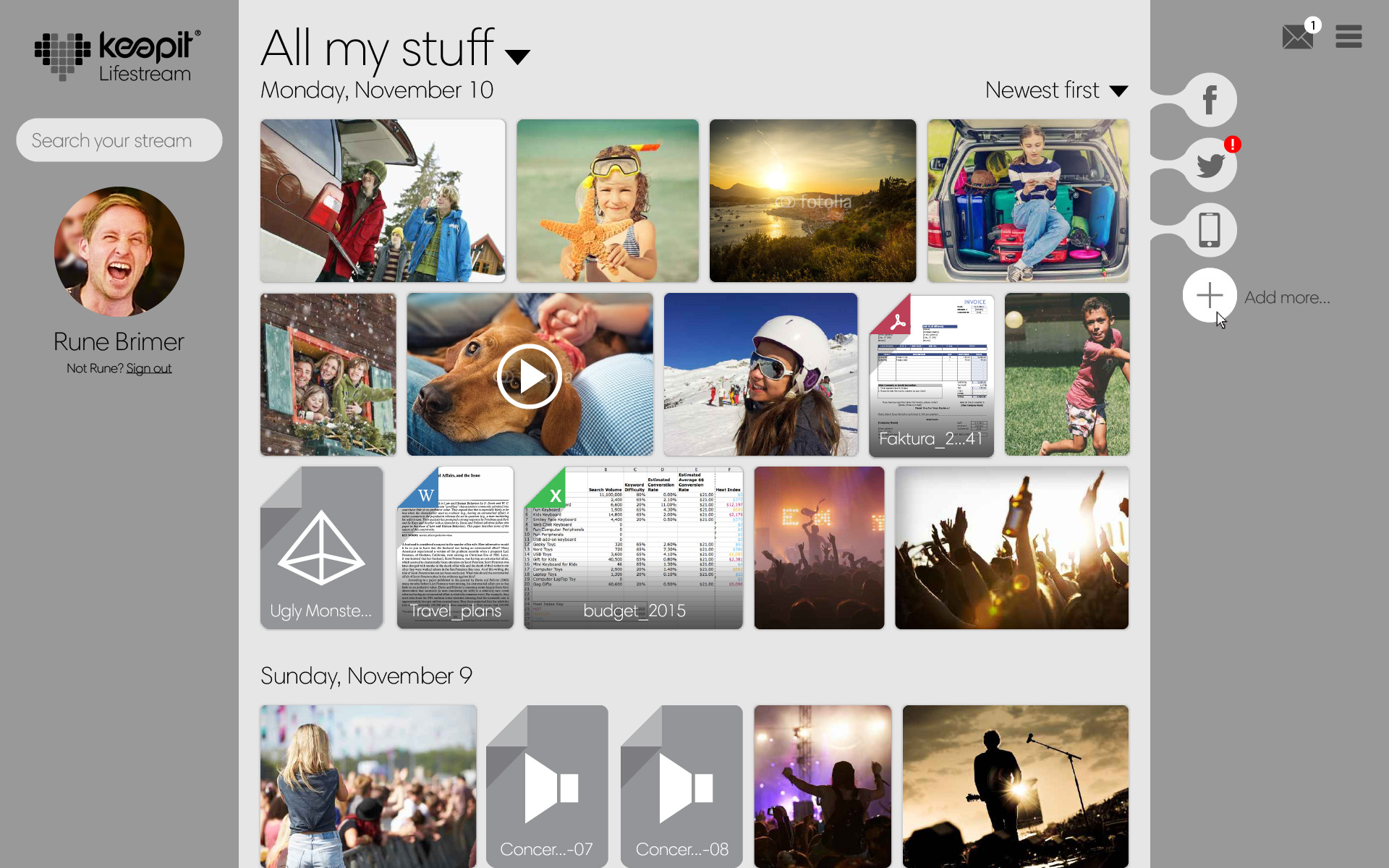 Above: The user is hovering above the “Add more…” button to add additional devices or services to her stream.
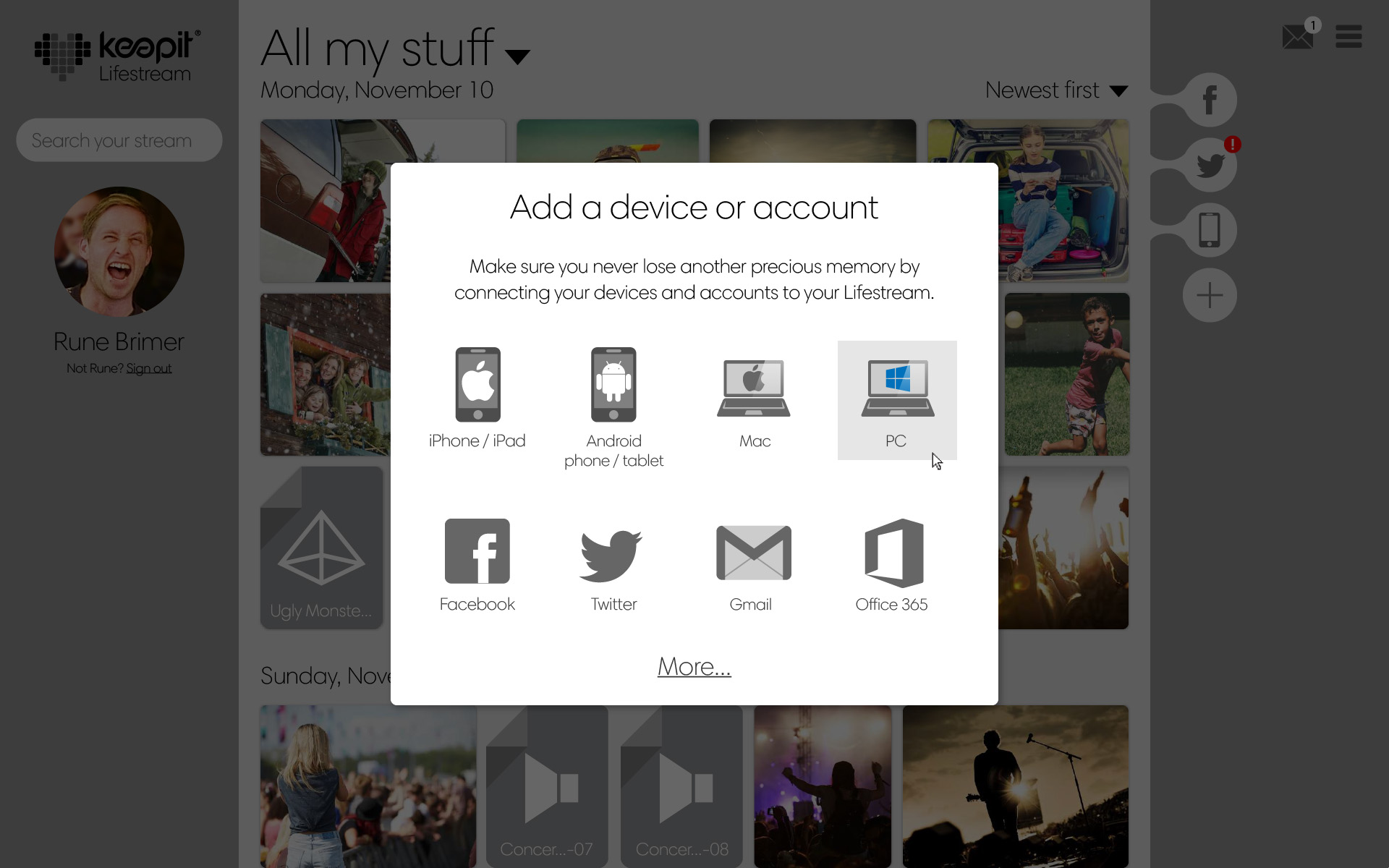 Above: Having clicked the “Add more…” button, the user is presented with the list of devices and services supported by Keepit. For social networks and cloud services, setting up a Keepit connector only requires the user to log in via a regular SSO dialogue.
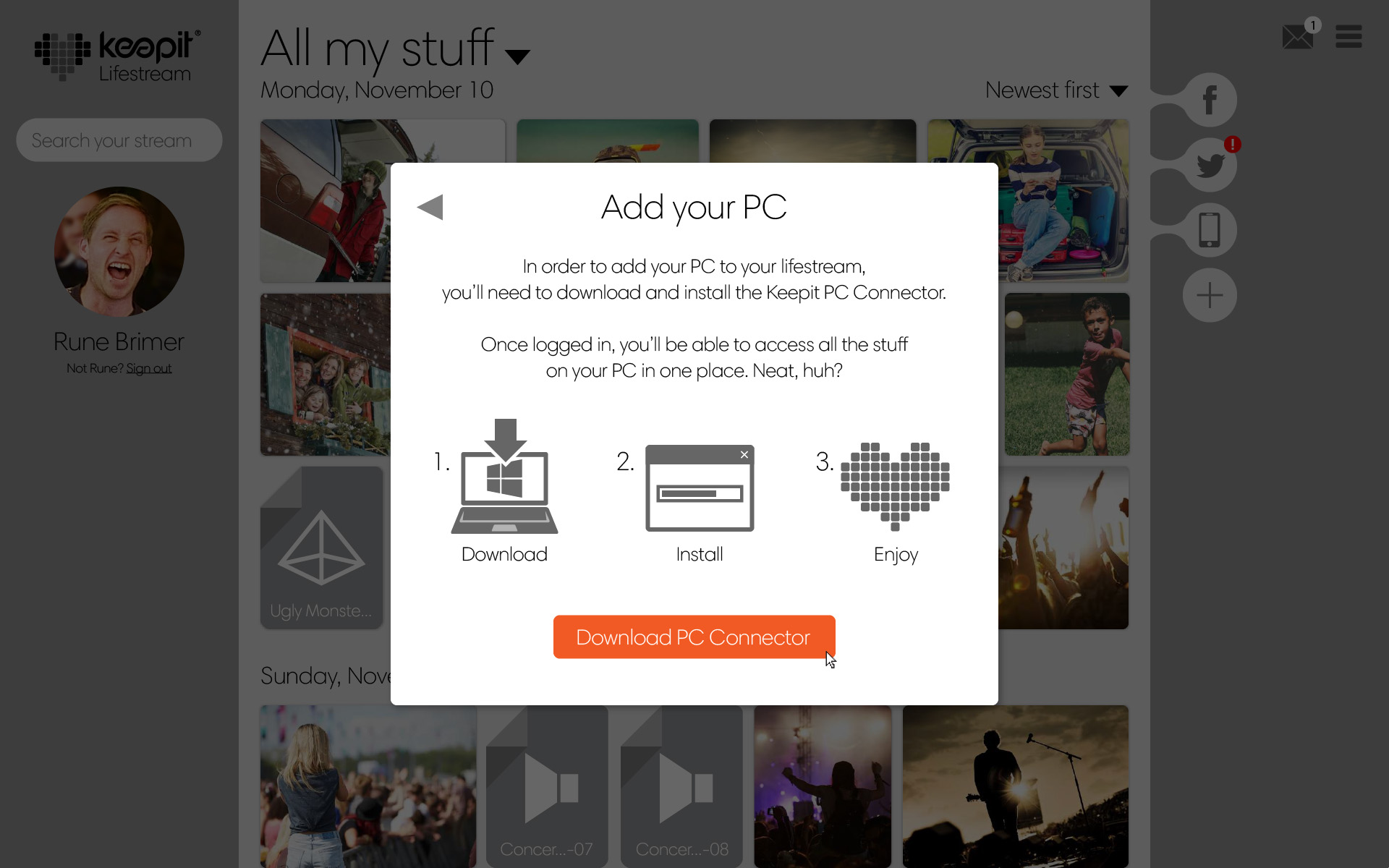 Above: The user has selected PC and is presented with instructions on how to download the Keepit connector for PC to connect it to the Lifestream.
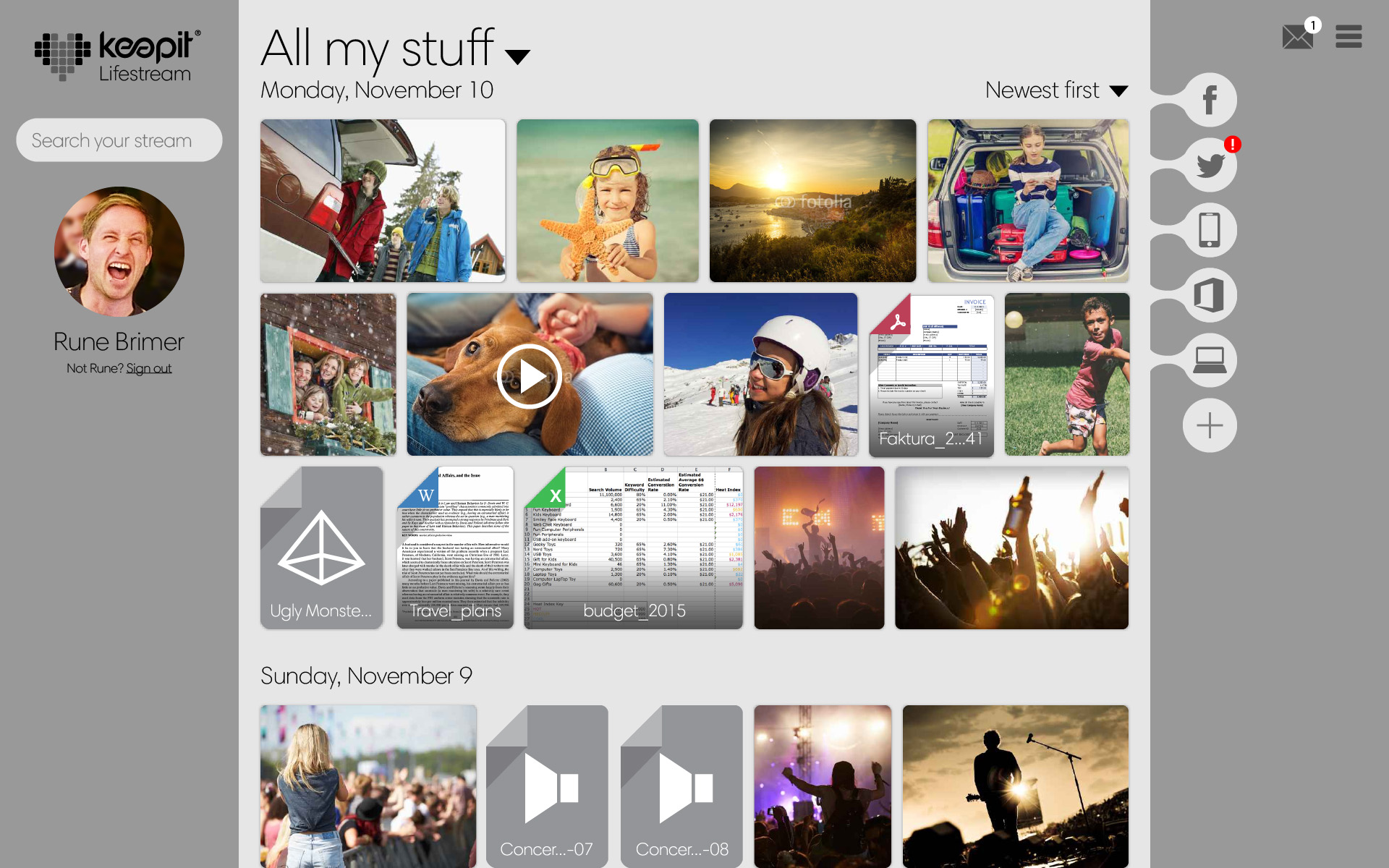 Above: The user has added a couple of new services to the list – namely a computer and an Office 365 account.
Viewers
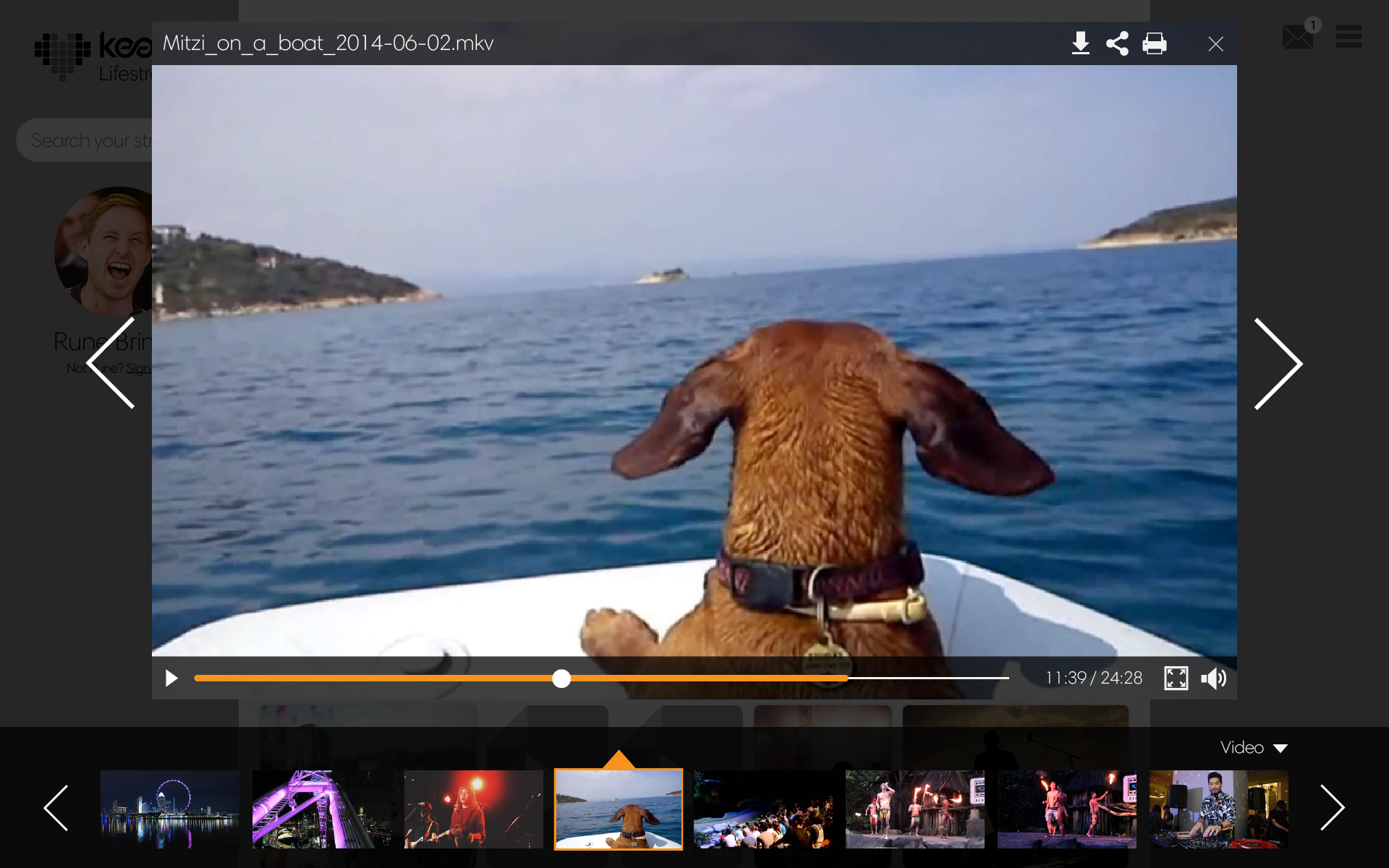 Above: Each file category has a built-in viewer that allows for easy previewing and enjoyment straight from the web interface without the need to actually download any of the files. In the example above, the user has invoked the video viewer by clicking on a video file.
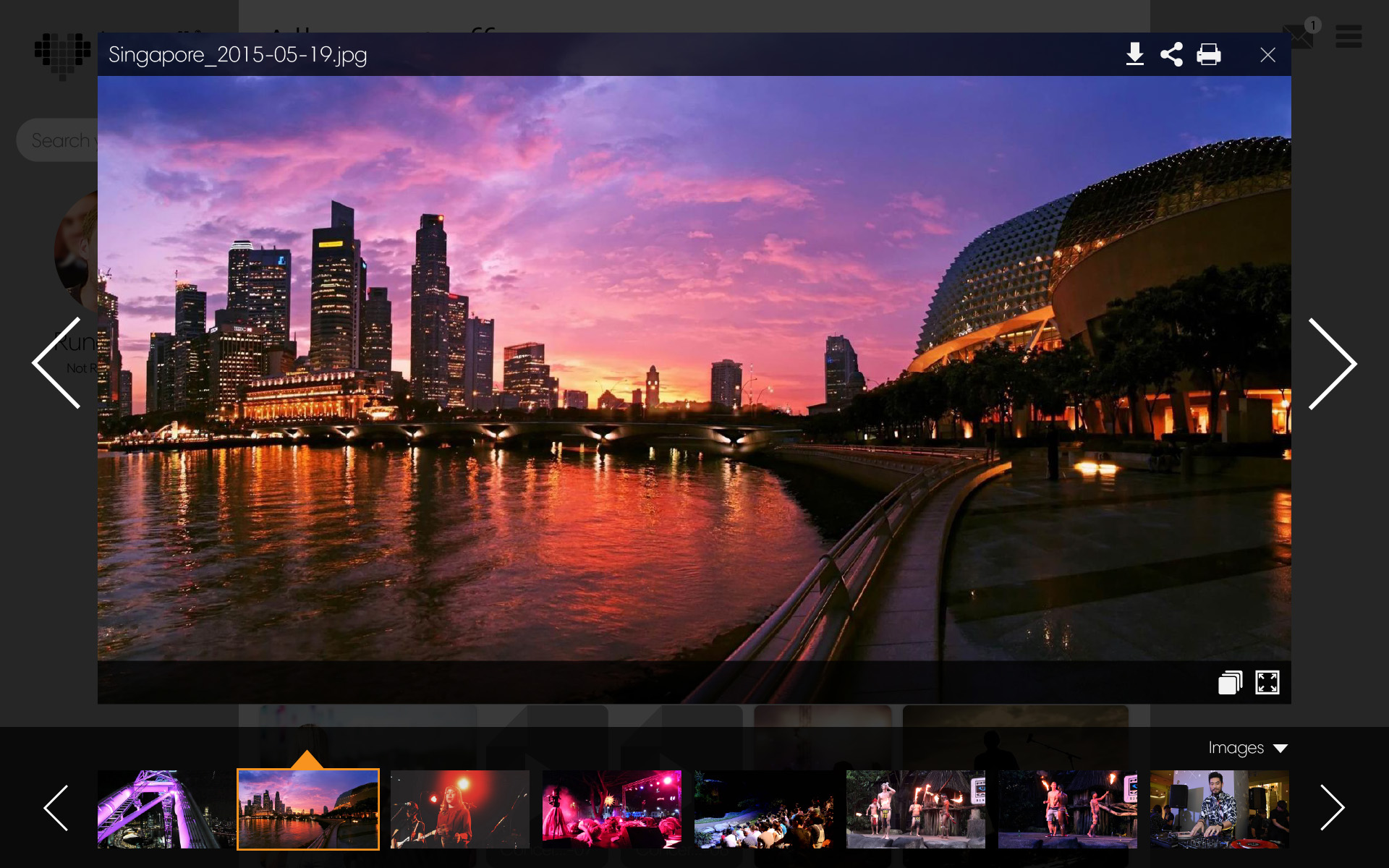 Above: All viewers share a common navigational backbone as well as look and feel so no matter what type of file the use user is viewing, navigating it will feel immediately familiar. As a result, the image viewer shown above looks much like the video viewer, except it has a Ken Burns-like slideshow feature and no timeline.
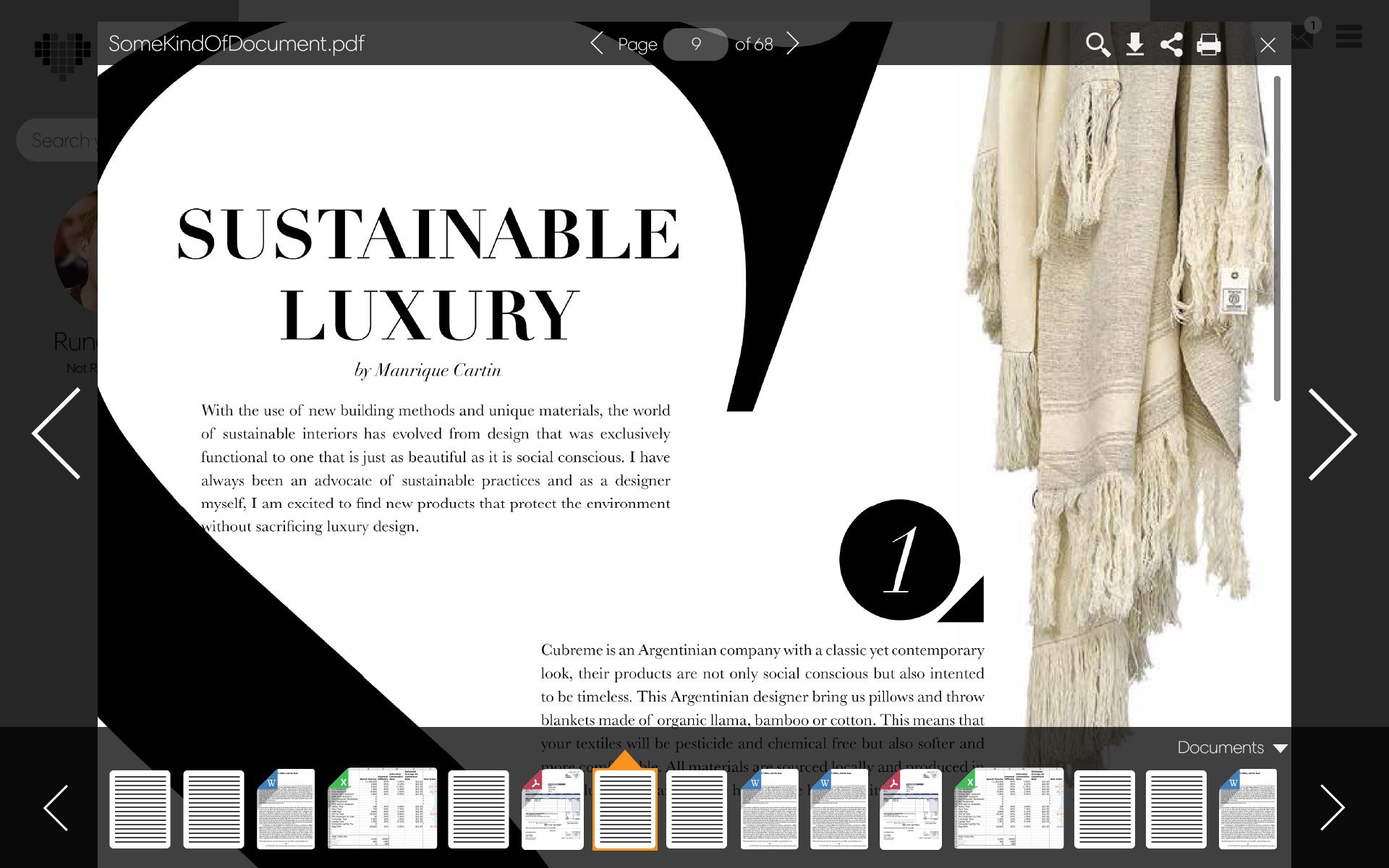 Above: The document viewer is tricky since the user will expect navigational left/right arrows to flip pages, so the UI will have to cater to that expectation.
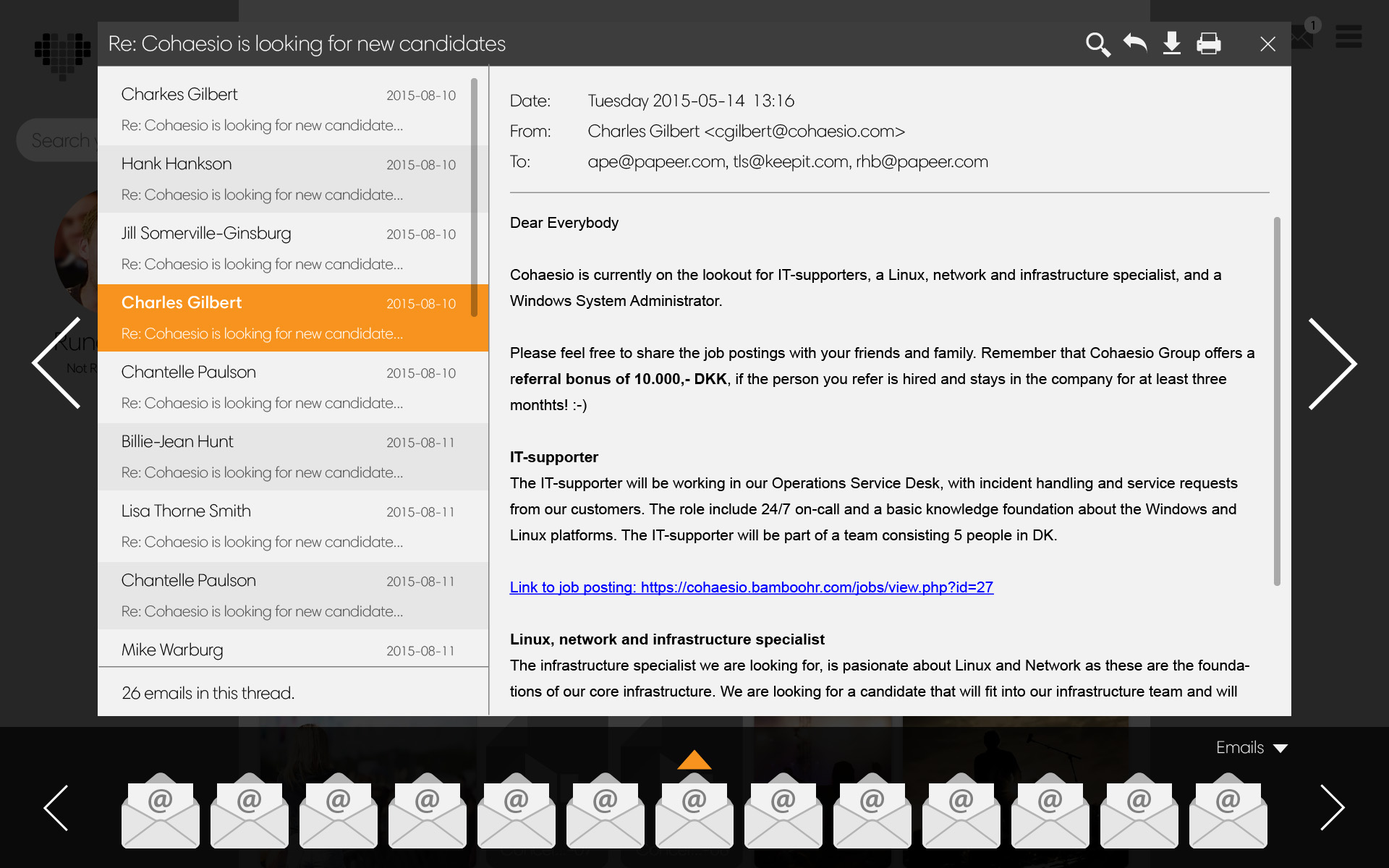 Above: Since thumbnails of emails wouldn’t be able to convey any useful information to help the user navigate them, the email viewer has an additional left column showing email sender/recipient and subject. This is also what users will be used to from most desktop email- and webmail applications.
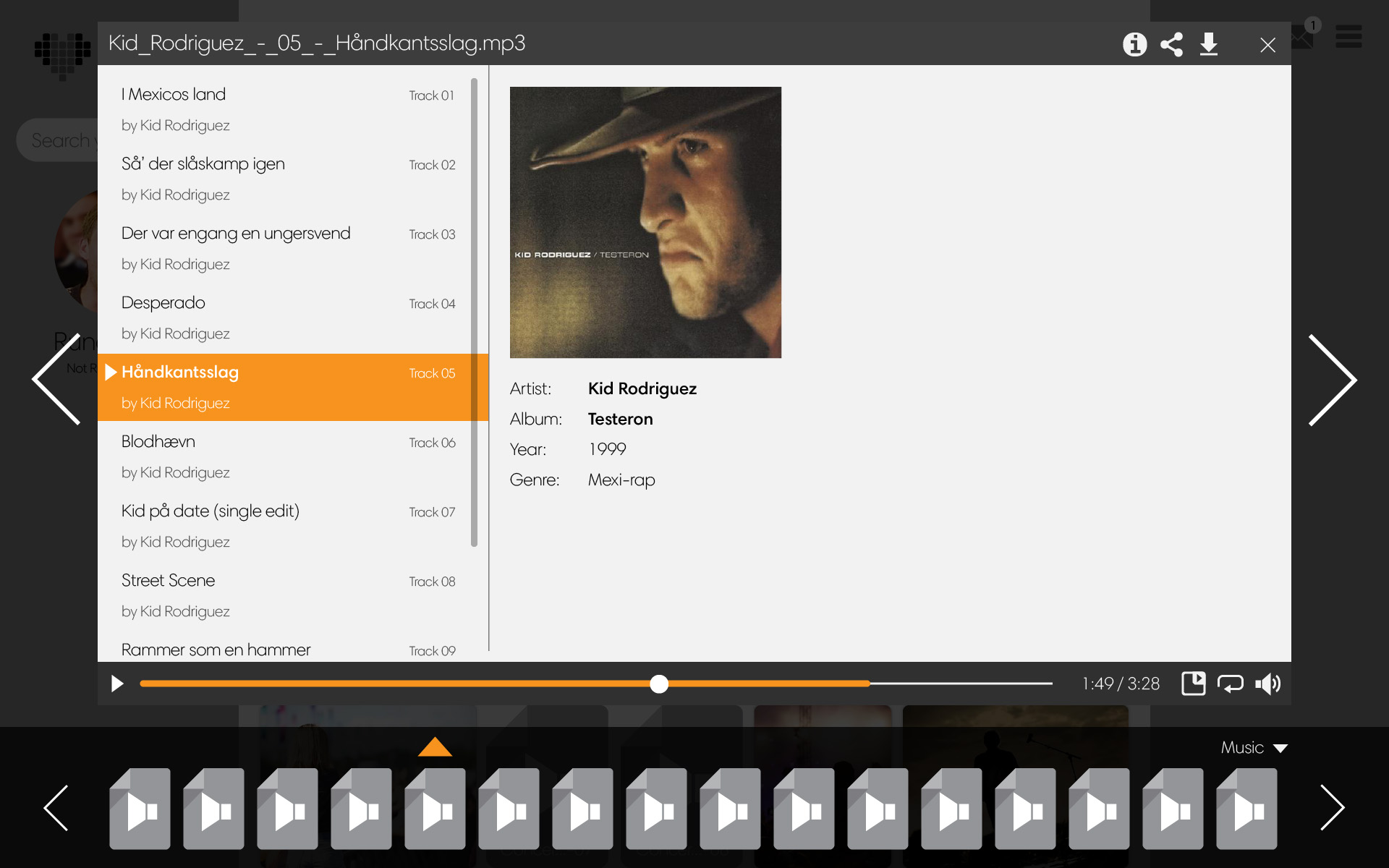 Above: Like email, audio tracks cannot be represented in thumbnail form in any meaningful way, so the audio player shares the same layut as the email viewer. Since audio is also the only file type which doesn’t require the user to stare at the interface while enjoying it, it has a minimize function which reduces the player to a persistent widget in the main UI.
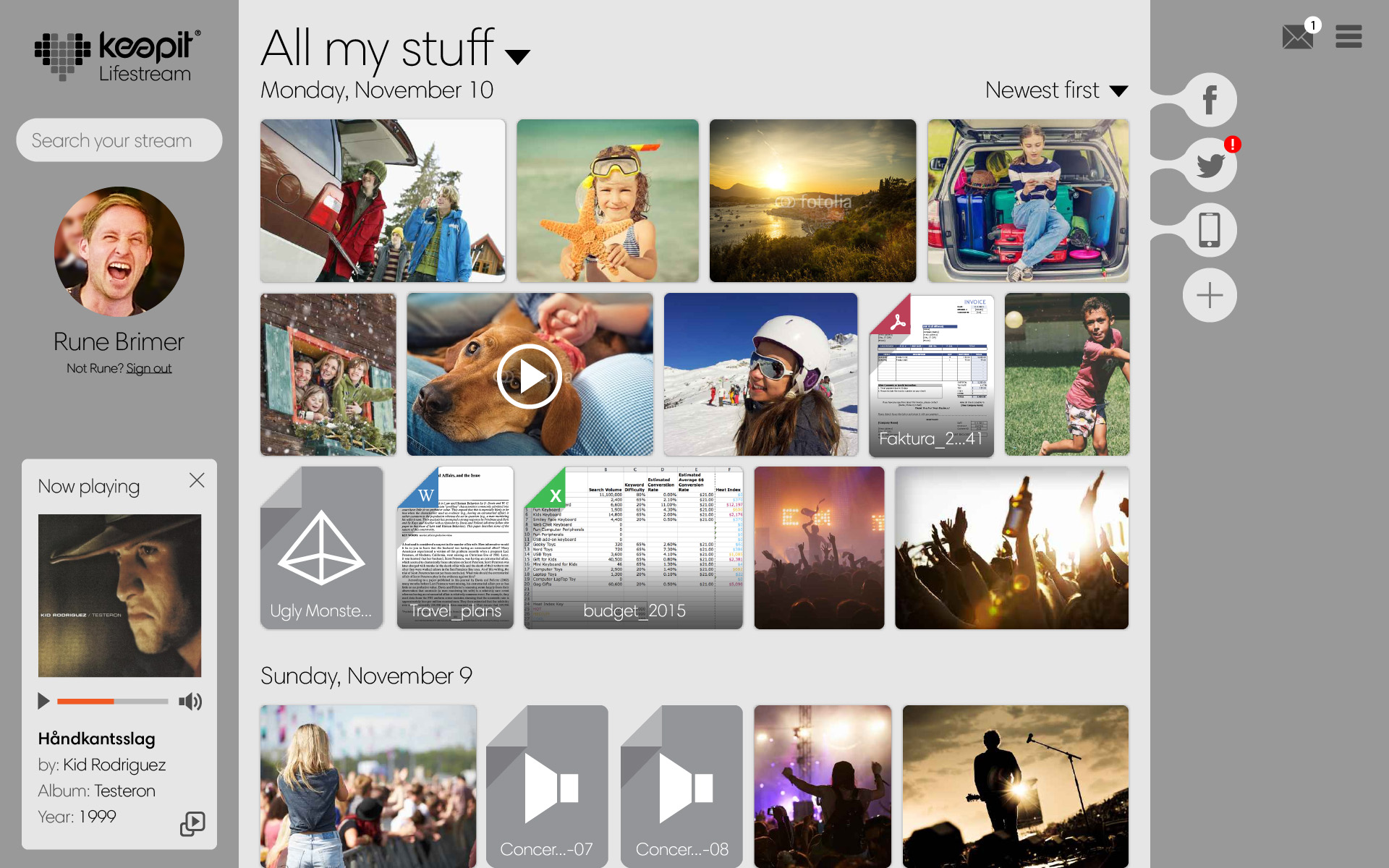 Above: The user has minized the audio player and in turn it now resides in the left side of the screen so that it doesn’t get in the way of browsing other content.
Connectors and mobile
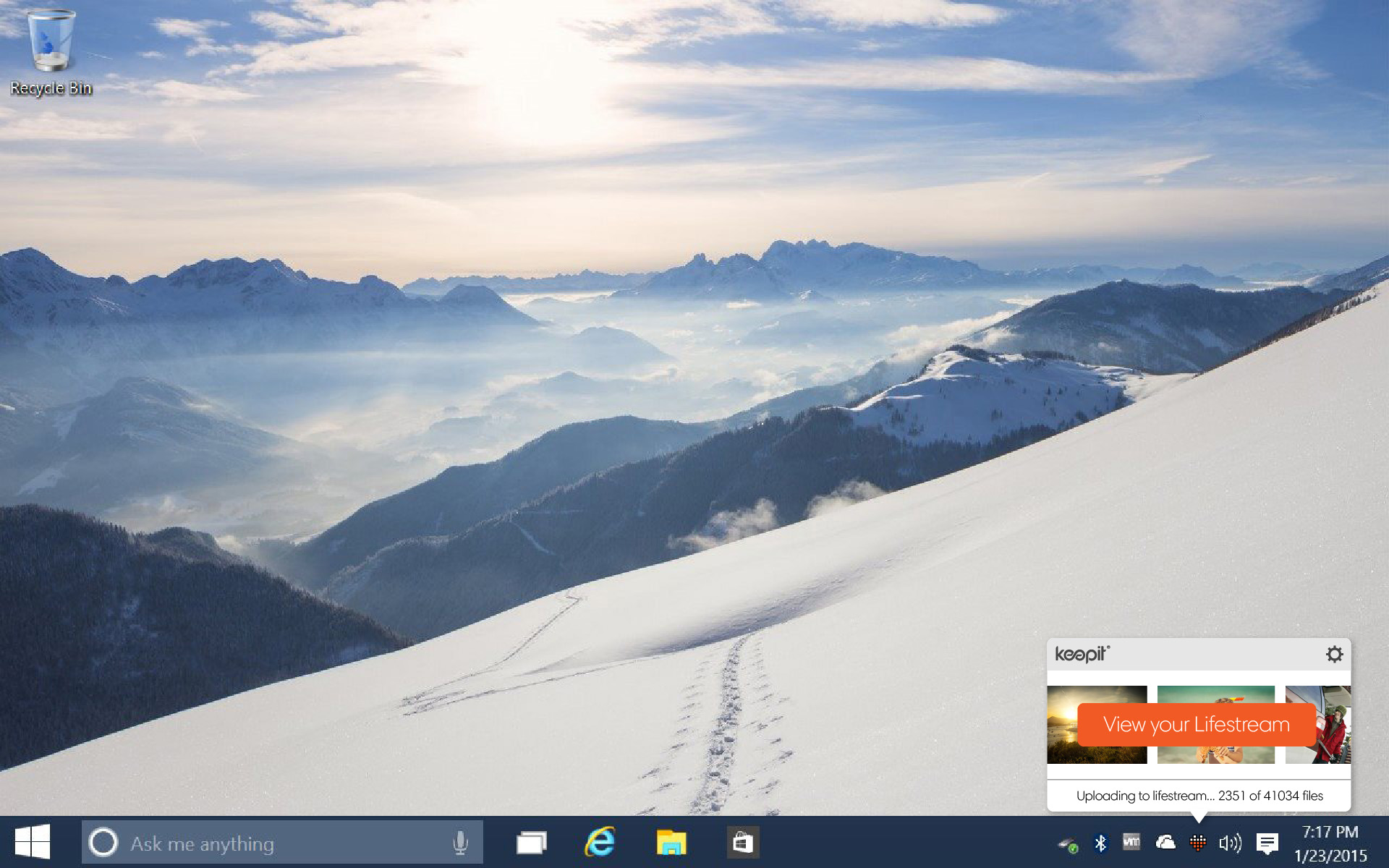 Above: The actual task of backup and synchronization of files between the user’s many devices is still handled by the Keepit Connectors residing on each device, and to unify and simplify the whole user experience, the image above shows how the Desktop Connectors on PC/Mac have been redesigned to be even more lightweight and autonomous. Status is provided via the tray icon, and clicking it will bring up the tray window showing what the connector is currently doing. As the files are being backed up, general progress is depicted by thumbnails sliding by in the background while more precise progress is spelled out in text below. Clicking the big, orange button will take the user straight to her lifestream via the browser.
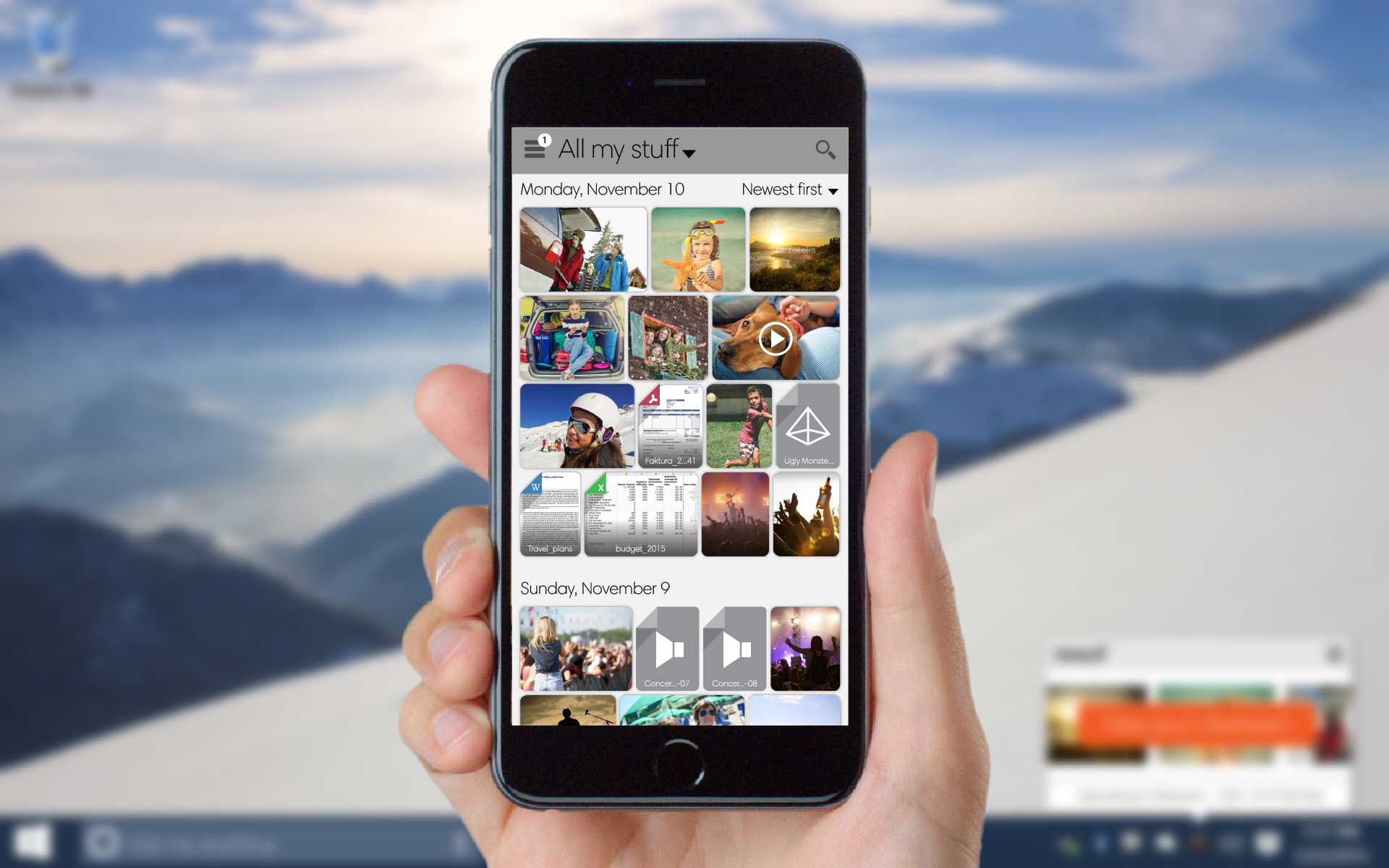 Above: The web interface is responsive and behaves the same across all devices while still taking advantage of the input methods and idiosyncracies of each platform.